
Redmine has a Gantt view built in. Most teams find it early, use it briefly, and then quietly stop.
The reason is always the same. The default view shows your issues as bars on a timeline. Start date on the left, due date on the right. Filtering by project, tracker, or assignee narrows the view, and the chart can be printed directly. But drag-and-drop rescheduling is not possible there are no dependency lines between issues, and comparing today’s schedule against the original plan requires manual work outside the tool. When a project slips, the default Gantt has no way to show you how far it has moved.
For small projects with short timelines and a single team, that is often enough. For software releases with cross-team dependencies, client deliveries with fixed milestones, or IT portfolios where one overloaded developer can hold up three projects the default Gantt runs out of road quickly.
This guide covers how to create a Gantt chart in Redmine using both the built-in view and the Redmineflux Gantt Chart Plugin, and when each approach is the right one.
What Redmine’s Built-In Gantt View Does
The short answer: Redmine’s built-in Gantt view displays issues on a timeline based on start and due dates. It is read-only, does not support dependencies or baselines, and does not let you reschedule work directly. For basic timeline visibility, it works. For active project planning, it requires the Redmineflux Gantt Chart Plugin to be useful.
To access the built-in view, open any Redmine project and click the Gantt tab in the project menu. Any issue with a start date and a due date appears as a bar on the timeline. You can filter by tracker, assignee, version, or priority to narrow the view.
That is genuinely useful when all you need is a quick visual of what is scheduled and when. A project manager checking whether the team’s work is spread across the month, or whether a set of issues is clustered too close to a release date, gets value from this view with no additional setup required.
Where the Default View Falls Short
The limitations become visible quickly when teams try to use it for active planning. Dependencies between issues are not tracked nothing shows which tasks must finish before others can start. Baseline comparisons are not available, so measuring how far the schedule has drifted from the original plan requires manual work. Resource loading across assignees is also not visible, and the chart is not interactive moving a bar does not reschedule the issue in Redmine. Every date change has to be made individually inside each issue.
Plan software releases visually instead of managing timelines manually in spreadsheets
How to Create a More Complete Gantt Chart in Redmine
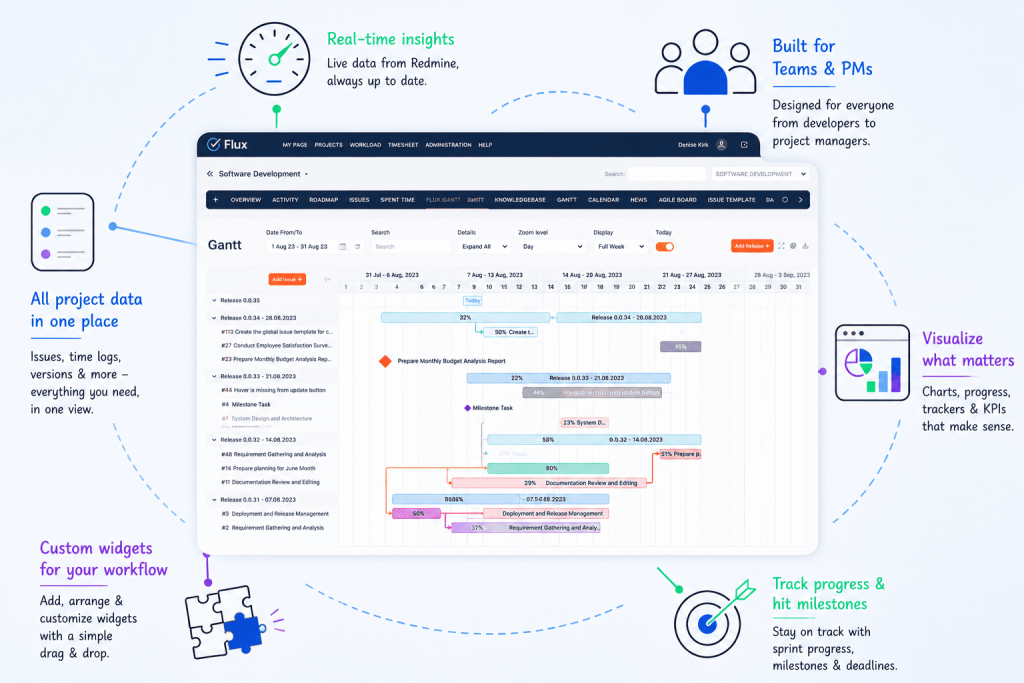
The Redmineflux Gantt Chart Plugin adds the planning layer that the built-in view is missing. Dependencies, baselines, milestones, resource loading, drag-and-drop rescheduling, and cross-project timelines all working directly on top of your existing Redmine issues.
Here is how to set it up from scratch.
Step 1 — Install the plugin
Upload the plugin folder to Redmine/plugins/gantt_chart. Run bundle install to install required gems. Run the database migration for your environment:
RAILS_ENV=production bundle exec rails redmine:plugins:migrateRestart Redmine. The plugin is now installed.
Step 2 — Enable Gantt Chart for your project
Go to Project → Settings → Modules tab. Check the Gantt Chart module and save. The project menu now shows a Gantt Chart tab alongside Issues, Agile Board, and other enabled modules.
Step 3 — Make sure your issues have dates
For any issue to appear on the Gantt chart, it needs a start date and a due date. You can set these on individual issues via the issue edit form. You can also assign dates directly by dragging on the Gantt canvas click and drag on an empty row for an issue that has no dates yet, and the plugin creates the date range immediately.
If your team has been skipping start dates because the built-in view was not useful, this is the step where the habit needs to change. A Gantt chart without dates is an empty chart.
Step 4 — Add dependencies between issues
Open any issue and scroll to the Relations section. Add a “follows” relation meaning this issue follows another issue and cannot start until the predecessor is complete. Save the issue.
Back on the Gantt chart, you will now see a connector line between the two issues. If the predecessor’s due date is later than the dependent issue’s start date, the schedule conflict is immediately visible on the chart. This is the moment where most teams realise how many implicit dependencies existed in their project that were never formally tracked.
Step 5 — Set a baseline
Open the Gantt Chart view and click Set Baseline. The plugin saves the current schedule every issue’s start and end dates as your reference plan.
From this point forward, the Gantt chart shows two bars for every issue: the baseline bar showing the original planned dates, and the current bar showing today’s dates. When an issue moves, the gap between the two bars makes the slippage immediately visible without any manual comparison.
Set a baseline at the start of each sprint, release, or project phase. It takes one click and gives you an honest record of how delivery tracked against the original commitment.
Step 6 — Add milestones
The Gantt Chart Plugin links milestones to Redmine versions. Go to Project → Settings → Versions → New Version. Give it a name and a target date. Save it.
Back on the Gantt chart, that version appears as a diamond marker on the timeline visible alongside all the issues working toward it. This is the view you share with stakeholders or clients when they ask for a delivery timeline. It shows the target date, the issues scheduled before it, and how current progress sits relative to the milestone.
Step 7 — Review resource loading
The Gantt Chart Plugin shows team member workload on the timeline. Scroll to the resource section of the view to see which team members are assigned to work on which dates.
Before scheduling a new piece of work or pulling an issue forward on the timeline, check whether the assigned person has capacity on those dates. Most scheduling conflicts that surface mid-sprint were visible at planning time they just had no tool to surface them.
Book a free demo and explore Gantt planning in a live Redmine environment
What This Looks Like in a Real Project
Consider a software team planning a release. The release has four phases: design, development, QA, and deployment. Development cannot start until design is complete. QA cannot start until development is done. Deployment is blocked until QA sign-off.
Without dependencies on the Gantt, that sequence is implicit everyone knows it, but nothing in the schedule reflects it. When design runs two days late, no one immediately updates the development start date. QA does not know their window has shifted. The release date stays fixed on the calendar while the schedule underneath it silently compresses.
With the Gantt Chart Plugin, you link those four phases as Finish-to-Start dependencies. When design slips two days, the dependent phases update on the chart automatically. The project manager sees the impact on the release date before anyone misses it. A conversation happens at replanning, not at the release date.
That is the practical difference between a timeline view and a planning tool.
Where the Gantt Chart Plugin Fits in the Wider Workflow
The Gantt chart works best when it connects to the rest of your Redmine workflow, not when teams use it in isolation.
Agile Board — daily work meets delivery timeline
If your team runs sprints on the Agile Board Plugin, those sprint issues appear automatically on the Gantt. Daily board work and delivery timeline planning stay in sync without any manual transfer. Use the board for day-to-day standups and the Gantt for release-level planning both views draw from the same issues.
Timesheet Plugin — effort alongside schedule
Time entries logged through the Timesheet Plugin sit against the same issues the Gantt displays. Effort visibility and schedule visibility come from one place. If an issue takes longer than estimated, the logged hours show you exactly why the bar moved.
Workload Plugin — capacity before commitment
If resource loading is a recurring concern, the Workload Plugin gives the team a dedicated capacity view. Used alongside the Gantt, it means you plan delivery dates knowing who is actually available rather than discovering overloads after you have already made commitments.
Common Questions
Does Redmine have a built-in Gantt chart?
Yes. Redmine includes a read-only Gantt view that displays issues on a timeline based on start and due dates. It supports basic filtering but does not allow dependencies, baselines, milestones, or drag-and-drop rescheduling. The Redmineflux Gantt Chart Plugin adds those capabilities on top of Redmine’s existing issue data.
How do I add dependencies between issues in Redmine?
Open an issue, scroll to the Relations section, and add a “follows” relation pointing to the predecessor issue. Once saved, the dependency appears as a connector line on the Gantt chart. Dependent issues update visually when predecessor dates change, making schedule impacts immediately visible.
What is a Gantt baseline in Redmine and how do I set one?
A baseline is a saved snapshot of your planned schedule at a specific point in time. To set one, open the Gantt Chart view and click Set Baseline. The current issue dates are saved as the reference plan. Future views show both baseline and current dates, making schedule slippage visible at a glance.
Can I view multiple Redmine projects on one Gantt chart?
Yes. The Redmineflux Gantt Chart Plugin includes a cross-project Gantt view. You select the projects to include and view all their issues on a single timeline. This is particularly useful for programme managers and IT directors overseeing several concurrent workstreams from one view.
Can I drag and drop issues to reschedule them on the Gantt?
Yes. The plugin supports drag-and-drop rescheduling directly on the Gantt canvas. Dragging an issue bar to a new position updates the issue’s start and due dates in Redmine on save. Dependent issues shift in line with the rescheduled predecessor.
Which Redmine versions does the Gantt Chart Plugin support?
Redmineflux tests and supports the plugin on Redmine 5.0.x, 5.1.x, and 6.0.x. Teams running Redmine 4.x should contact support before purchasing to confirm compatibility.
Redmine’s built-in Gantt view is a starting point useful for visibility, limited for planning. The Redmineflux Gantt Chart Plugin turns it into an active planning tool where dependencies are tracked, you can measure slippage against a baseline, and resource conflicts surface before they affect delivery.