Categories
Informational

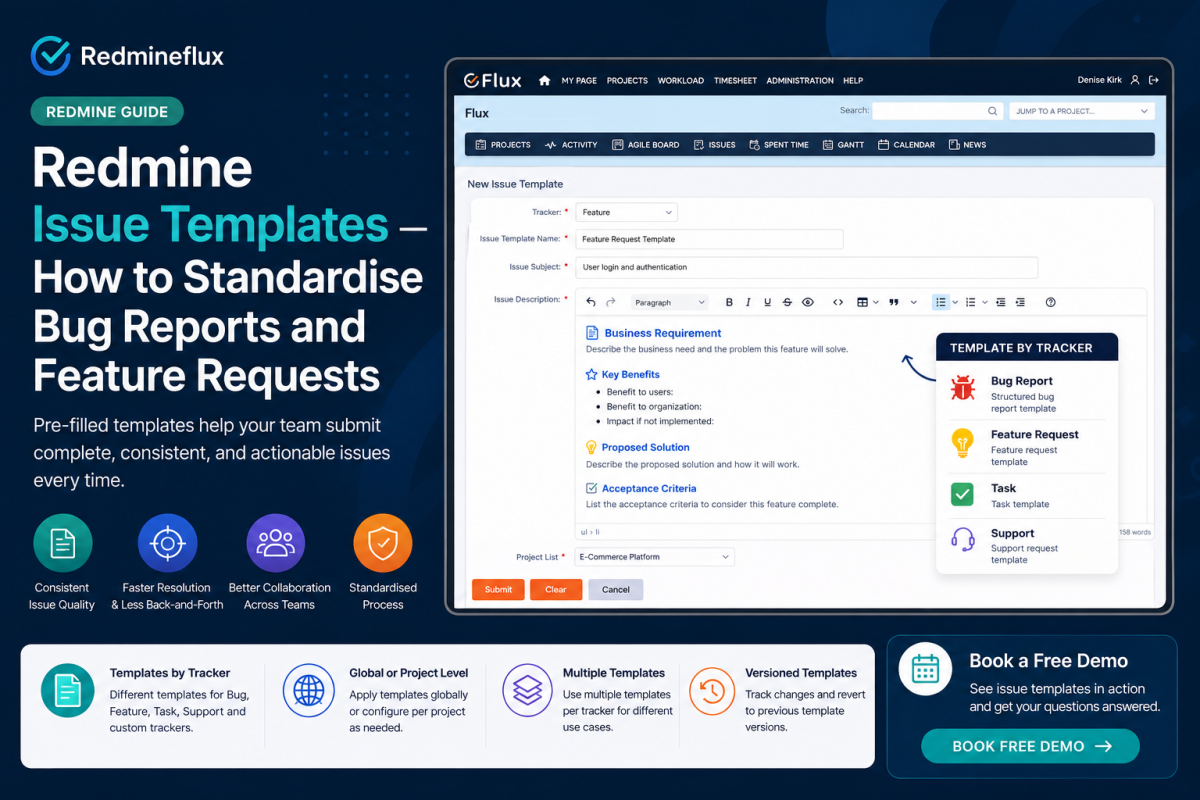
Redmine Issue Templates — How to Standardise Bug Reports and Feature Requests

Redmine issue templates solve a specific problem bug report quality determines how quickly bugs get fixed. A report with a clear summary, reproduction steps, expected behaviour, and actual behaviour gives a developer everything they need. In contrast, a report that says “the thing doesn’t work” sends the developer back with questions a round-trip that adds hours or days to resolution.

However, Redmine has no built-in issue templates. Reporters create new issues from a blank form. Some fill in the relevant fields. Many do not. As a result, issue quality is inconsistent across the project and development teams spend part of every sprint gathering information that should have arrived with the issue.

The Redmineflux Issue Template Plugin fixes this. In short, it adds pre-filled issue templates by tracker type Bug, Feature, Task, Support. When a reporter creates a new bug issue, the description field contains the template structure: Summary, Steps to Reproduce, Expected Result, Actual Result, Environment. The reporter fills in the blanks. The structure is already there.

Does Redmine Have Issue Templates?

The short answer: Redmine has no built-in issue templates. New issues are created from a blank form. The Redmineflux Issue Template Plugin adds configurable templates per tracker type Bug, Feature, Task, and any custom trackers your project uses. When a reporter opens a new issue, the template pre-fills the description field with the required structure. Every issue arrives with the right fields present, reducing back-and-forth between reporters and developers.

In practice, some teams write template instructions in the project wiki and ask reporters to copy-paste them into new issues. This approach depends entirely on reporters remembering to do it. Consequently, it does not work consistently at scale, and it does not work at all for occasional contributors or clients submitting issues directly.

What the Issue Template Plugin Adds

The Redmineflux Issue Template Plugin adds template management to Redmine at the project and global level.

Templates by Tracker Type

Each Redmine tracker can have its own template. A bug tracker template includes reproduction steps and environment fields. A feature request template includes user story format, acceptance criteria, and priority justification. A support tracker template includes client name, affected system, and urgency.

Specifically, templates are defined by the project administrator and apply automatically when a reporter selects that tracker type on a new issue. The reporter does not need to find the template it appears in the description field automatically.

Create consistent bug reports and feature requests with reusable issue templates.

Configurable Template Sections

Templates are written in Redmine’s text formatting syntax. Administrators structure the template with section headers, placeholder text, and required fields. A typical bug report template:

**Summary:**
[One-sentence description of the bug]
**Steps to Reproduce:**
1.
2.
3.
**Expected Result:**
[What should happen]
**Actual Result:**
[What actually happens]
**Environment:**
- Redmine version:
- Browser / OS:
- Affected project:

Reporters work through the template section by section. As a result, nothing arrives blank. The developer receives consistent, structured information on every issue.

Global Templates Across Projects

Additionally, for organisations managing multiple projects in Redmine, global templates apply across all projects without per-project configuration. A global bug template ensures that every bug report across every project regardless of which team created it follows the same structure.

See how issue templates improve reporting quality across every Redmine project.

This is particularly valuable for cross-team projects, client-facing issue submission, or organisations that have a quality standard for all reported work.

Multiple Templates per Tracker

A single tracker can have multiple templates for different use cases. A bug tracker might have separate templates for: frontend bugs, backend bugs, and performance issues. A feature tracker might have templates for: new feature requests, enhancement requests, and UX improvements.

When a reporter creates a new issue, they select the tracker and then choose the relevant template from a dropdown. Specifically, the selected template loads into the description field immediately.

Template Version Control

Templates are versioned. When a template is updated, the update applies to all new issues created after the change. Existing issues retain the version of the template that was active when they were created. Administrators can view and revert to previous template versions.

How Teams Use Issue Templates in Practice

Standardising Client Bug Reports

In practice, software agencies and product teams that accept bug reports from clients benefit most immediately from issue templates. Without a template, client-submitted bugs vary enormously in quality. With a template, the client is guided through the required information before submission. As a result, the development team receives actionable reports without a follow-up round-trip.

Combined with the Help Desk Plugin for client-facing ticket intake, templates ensure that both the submission form and the issue structure guide reporters toward complete, useful reports.

If your team uses templates for billable client work, the Invoice Plugin turns logged time from those standardised issues into client invoices — without leaving Redmine

QA Team Bug Submission Standards

Similarly, QA teams submitting bugs from the Testcase Management Plugin benefit from a consistent bug report template that links the bug to the test case that found it, the environment it was tested in, and the steps to reproduce from the test run. The template structure captures all of this without requiring QA engineers to remember what to include.

Feature Request Process

Additionally, product managers and stakeholders submitting feature requests use a template that captures: the user problem being solved, the proposed solution, the expected business value, and any constraints. Consequently, every feature request arrives with the information needed for prioritisation not just a description of what the requester wants to build.

Common Questions

Does Redmine have issue templates?

No. Redmine creates new issues from a blank form. The Redmineflux Issue Template Plugin adds configurable templates per tracker type. When a reporter selects a tracker to create a new issue, the template pre-fills the description field with the required structure sections, placeholder text, and required fields.

Can I have different templates for different issue types in Redmine?

Yes. The Issue Template Plugin supports separate templates for each tracker type Bug, Feature, Task, Support, and any custom trackers. A single tracker can also have multiple templates for different use cases, selectable from a dropdown when creating a new issue.

Do issue templates work across multiple projects in Redmine?

Yes. The plugin supports global templates that apply across all projects in the Redmine instance. Project-level templates are also supported and override global templates for the specific project they are configured in.

Can I update an issue template without affecting existing issues?

Yes. Template updates apply to new issues created after the change. Existing issues retain the description content from when they were created. Previous template versions are stored and accessible to administrators.

Which Redmine versions does the Issue Template Plugin support?

The Redmineflux Issue Template Plugin supports Redmine 5.0.x, 5.1.x, and 6.0.x. Teams running Redmine 4.x should contact support before purchasing to confirm compatibility.

In short, every incomplete bug report is a communication failure between the reporter and the developer and the developer pays the cost. Issue templates do not add bureaucracy. They remove the uncertainty that creates back-and-forth, and they set the reporter up to provide what the developer needs. Specifically, the Issue Template Plugin makes that structure automatic.

Book a free demo and see issue templates in action across bugs, features, and support requests.


Related Reading
 

Categories
Comparison

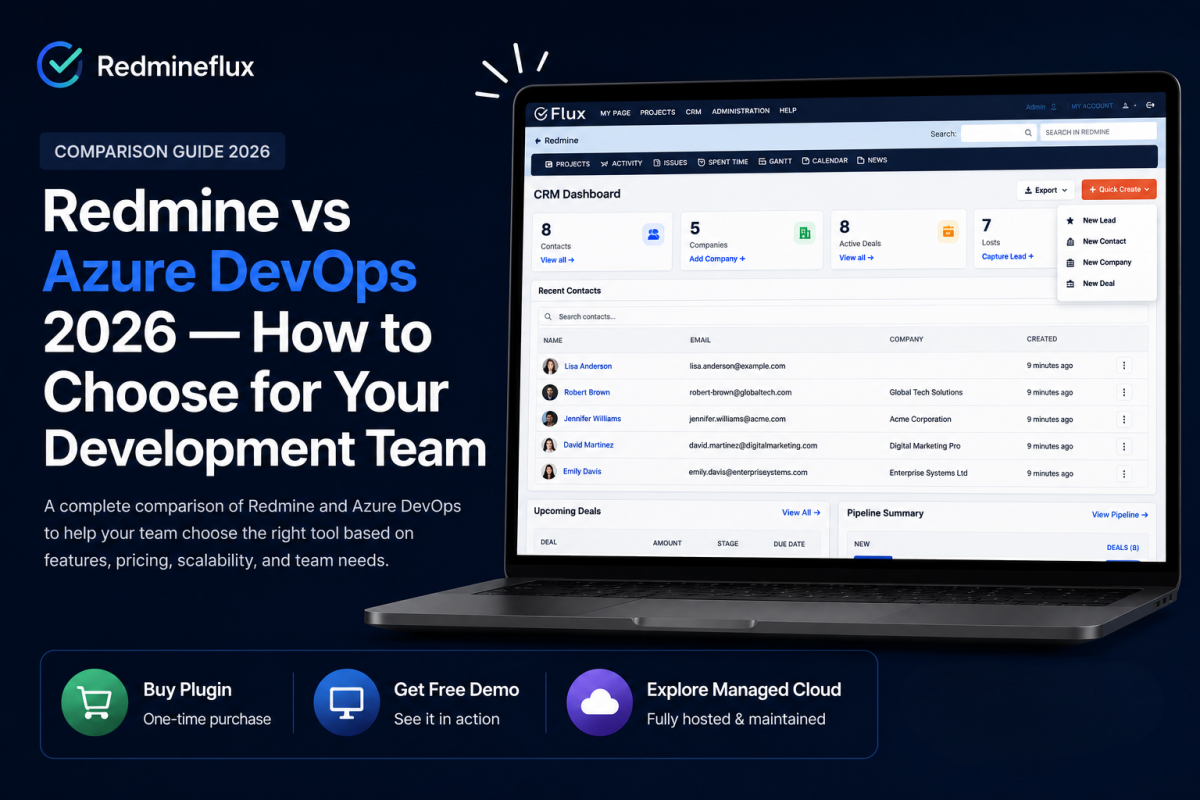
Redmine vs Azure DevOps 2026 — How to Choose for Your Development Team

Development teams comparing Redmine vs Azure DevOps frequently find two tools at opposite ends of the spectrum. They solve similar problems tracking work, managing sprints, reporting on delivery but they do so with fundamentally different architectures, cost models, and levels of vendor dependency.

This comparison covers both tools honestly. In short, the goal is to help your team make a clear decision based on your specific situation, not to declare a winner.

Redmine vs Azure DevOps – The Core Difference

The short answer: Redmine is free, open-source, self-hosted issue tracking software. You own the server, the data, and the configuration. Azure DevOps is a Microsoft cloud platform offering CI/CD pipelines, boards, repositories, test plans, and artefacts with per-user pricing and Microsoft cloud dependency. Teams that need self-hosted data control and low per-seat cost lean toward Redmine. Teams that need deep CI/CD integration with Microsoft tools and a fully managed cloud service lean toward Azure DevOps.

In practice, the choice is not primarily about features. It is about your infrastructure philosophy, your budget model, and how much Microsoft ecosystem lock-in your team is willing to accept.

What Redmine Does

Redmine is a structured issue tracking and project management platform. It handles:

  • Issue tracking with customisable trackers, statuses, priorities, and workflows
  • Multi-project management with role-based access control
  • Time tracking and reporting per project and per user
  • Version and milestone management
  • Built-in wiki documentation per project
  • Repository integration with Git and Subversion
  • Extensibility through plugins Agile boards, Gantt charts, dashboards, timesheets, test case management, and more via the Redmineflux plugin suite

Redmine does not include CI/CD pipelines, automated testing infrastructure, or artefact management natively. However, for development teams that separate their project management tool from their CI/CD platform, this is not a limitation it is by design.

What Azure DevOps Does

Azure DevOps is a Microsoft cloud platform that combines multiple development services in one hosted product:

  • Azure Boards — Kanban boards, backlogs, sprint planning, work item tracking
  • Azure Repos — Git repository hosting (or TFVC)
  • Azure Pipelines — CI/CD pipeline management with broad language and cloud support
  • Azure Test Plans — structured test case management and execution
  • Azure Artefacts — package registry for npm, NuGet, Maven, and more

In fact, Azure DevOps is a broader platform than Redmine. If your team needs CI/CD pipelines, repository hosting, and test management in a single vendor product, Azure DevOps covers more ground. However, the trade-off is cost, vendor dependency, and cloud-only deployment.

Switch to Redmine — Cut Your Azure DevOps Bill Today

Head-to-Head Comparison

Dimension Redmine + Redmineflux Azure DevOps
Pricing model Per installation, not per user Per user per month (free up to 5 users)
Hosting Self-hosted (your server) or Managed Cloud Microsoft cloud only
Data ownership Full — your server, your data Microsoft cloud — subject to Microsoft terms
Issue tracking Full-featured with custom workflows Azure Boards — full-featured
Agile boards Agile Board Plugin — Kanban, Scrum, WIP limits Azure Boards — built in
Gantt chart Gantt Chart Plugin — dependencies, baselines Basic timeline view in Azure Boards
Time tracking Timesheet Plugin — approval workflow, reporting Basic work item time tracking
Test management Testcase Management Plugin Azure Test Plans — comprehensive
CI/CD pipelines Not included (integrate with external CI) Azure Pipelines — built in
Repository hosting Git integration (external hosting) Azure Repos — built in
Customisation High — open-source, extensible plugins Moderate — within Microsoft’s product boundaries
Vendor lock-in None — open-source platform High — Microsoft cloud dependency
Microsoft ecosystem Integration possible, not native Native — Teams, GitHub, Visual Studio

Cost Comparison

Redmine is free software. Your costs are:

  • Server infrastructure (cloud VPS or on-premise hardware)
  • Plugin licences from Redmineflux (per installation, not per user)
  • Optionally: Redmineflux Managed Cloud from $1.99 per user per month (all plugins included, infrastructure managed)

Specifically, for a team of 20 users, Redmine with Managed Cloud costs approximately $39.80/month all plugins included, no infrastructure management overhead.

Azure DevOps pricing:

  • First 5 users free (Basic plan)
  • Basic plan: $6 per user per month
  • Basic + Test Plans: $52 per user per month

For example, a team of 20 users on the Basic plan pays $90/month. The same team needing test management pays $1,040/month.

Consequently, for teams that need test case management a common requirement for development teams the cost difference is significant.

“For services teams, the Redmineflux CRM Plugin adds client relationship and deal pipeline management directly inside Redmine — no separate CRM subscription needed

When Redmine Is the Better Choice

You want data sovereignty. Regulated industries, government agencies, and organisations with strict data residency requirements need their project data on infrastructure they control. Azure DevOps stores data in Microsoft data centres. In contrast, you can deploy Redmine on your own infrastructure in your chosen country or region.

Per-user SaaS pricing becomes a budget concern at scale. Specifically, Redmine’s per-installation licence model means a 50-person team costs the same as a 5-person team at the plugin level. As a result, Azure DevOps per-user pricing scales linearly larger teams pay more every month indefinitely.

CI/CD pipelines belong outside your project management tool. In fact, many teams separate CI/CD (GitHub Actions, GitLab CI, Jenkins) from project tracking. If that is your architecture, Redmine’s lack of built-in pipelines is not a gap.

Open-source workflow flexibility matters more than a vendor-managed product. Consequently, Redmine’s open-source model and plugin architecture allow custom workflow configurations that Microsoft’s product boundaries do not permit.

When Azure DevOps Is the Better Choice

Your team is already deep in the Microsoft ecosystem. Teams using Visual Studio, GitHub Enterprise, Microsoft Teams, and Azure cloud services benefit from native Azure DevOps integrations. However, Redmine can integrate with these tools it requires more configuration work than Azure DevOps handles natively.

A single-vendor DevOps platform covering CI/CD, repos, and artefact management is the priority. In short, Azure DevOps is a more complete DevOps platform for teams that want one vendor covering the full development lifecycle.

Small teams under 5 users need a free, fully managed cloud solution. Specifically, Azure DevOps is free for up to 5 users with no infrastructure setup required.

See Redmine Running in 30 Minutes — Book a Free Demo

Migrating from Azure DevOps to Redmine

In practice, teams that move from Azure DevOps to Redmine typically do so for three reasons: cost reduction at team scale, a requirement for self-hosted data control, or a preference for open-source tooling.

Migration involves exporting Azure Boards work items and importing them into Redmine as issues. Teams can migrate Azure Repos to any Git hosting solution the repository history travels with the repository. The migration path is technically straightforward for the project management data; CI/CD pipeline configuration requires rebuilding in whatever CI platform the team moves to.

Additionally, the Redmineflux team can assist with migration planning for teams moving from Azure DevOps. Contact us to discuss your specific situation.

Common Questions

Is Redmine better than Azure DevOps?

In short, neither tool is universally better. Redmine is better for teams that need self-hosted data control, per-installation licensing, and high workflow customisation without Microsoft dependency. Azure DevOps is better for teams already in the Microsoft ecosystem that need built-in CI/CD pipelines and repository hosting in one product.

Can Redmine replace Azure DevOps?

For project management and issue tracking, yes. Specifically, the Redmineflux plugin suite Agile Board, Gantt Chart, Testcase Management, Timesheet covers the Azure Boards and Azure Test Plans functionality. However, Redmine does not replace Azure Pipelines or Azure Repos, which require separate tools.

Is Redmine free compared to Azure DevOps?

Redmine software is free and open-source. However, running it requires server infrastructure. Plugin licences are per-installation, not per user. Azure DevOps is free up to 5 users; beyond that, per-user monthly pricing applies. Consequently, for teams of 10 or more users, Redmine with Managed Cloud is typically significantly less expensive than Azure DevOps.

Does Redmine work with Azure DevOps?

Redmine and Azure DevOps can run in parallel with manual or API-based synchronisation. However, most teams that evaluate both choose one as their primary system running both creates duplication. Teams using Azure Repos for source control can integrate Redmine with the repository through Redmine’s built-in Git integration.

In short, the Redmine vs Azure DevOps decision is not a close call once you define what your team actually needs. If your primary requirement is structured issue tracking, sprint management, and project reporting without CI/CD pipelines built in Redmine with the Redmineflux plugin suite delivers that at a fraction of Azure DevOps cost, with full data ownership.

Get Hosted Redmine from $1.99 per User — Explore Managed Cloud

Related Reading


Categories
Informational

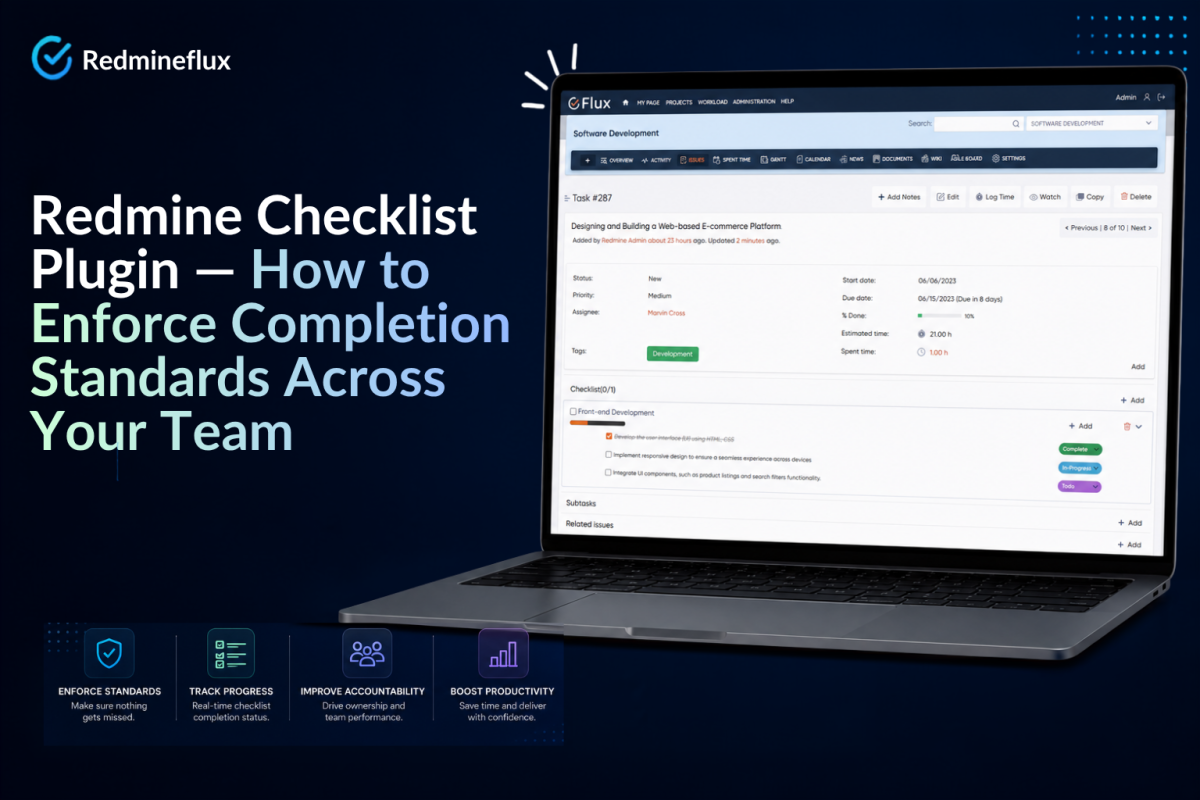
Redmine Checklist Plugin — How to Enforce Completion Standards Across Your Team

Every team has a definition of done. Without a Redmine checklist plugin enforcing those steps, developers close issues when they believe the work is finished not when every required step is complete. A bug fix may ship before its test case is updated. A feature may close before QA sign-off arrives.

In practice, project managers discover missed steps during review cycles, release preparation, or client handoffs. By then, the cost of correction is higher than it would have been at the point of closure.

The Redmineflux Checklist Plugin adds enforced completion steps directly to Redmine issues. Before an issue can close, every checklist item must be ticked. Teams configure steps per issue type, per project, or per individual issue. Nothing ships without the right checks completed.

Does Redmine Have a Checklist Feature?

The short answer: Redmine has no built-in checklist feature. Issues can have subtasks and custom fields, but there is no per-issue step list with enforced completion. The Redmineflux Checklist Plugin adds configurable checklists to any Redmine issue type mandatory steps that must all be ticked before the issue status can move to closed. Teams use it to enforce definition of done, QA sign-off, and deployment verification.

Some teams approximate checklists using subtasks or custom fields in Redmine. Subtasks require creating separate issues per step, which clutters the issue list. Custom fields can represent a boolean “done” state but cannot enforce sequence or require all fields to be completed before closure. Neither approach scales to team-wide standard processes.

What the Checklist Plugin Adds

The Redmineflux Checklist Plugin adds native checklist functionality to Redmine issues. Checklists are lightweight, configurable, and enforceable.

Per-Issue Checklists

Any Redmine issue can have a checklist. The developer or project manager adds checklist items directly to the issue as a simple list of steps to complete before the issue is done. Items are ticked as work progresses. The issue cannot be closed until all items are checked.

In practice, this pattern works for one-off requirements that do not fit a standard template edge-case deployments, ad-hoc client requests, or non-standard bug fixes that need specific verification steps.

Template Checklists by Issue Type

The plugin supports checklist templates assigned to issue types. Every bug issue in a project automatically gets the standard bug fix checklist. Every feature issue gets the feature delivery checklist. Templates are defined once at the project level and applied automatically when a new issue of that type is created.

Example template for a bug fix issue:

  • Root cause identified and documented
  • Fix implemented and code reviewed
  • Unit test added or updated
  • Tested in staging environment
  • Test case updated in test management
  • Release note written

As a result, every developer closing a bug issue works through the same checklist. Steps are not optional they are visible, trackable, and enforced.

See how checklist templates standardize issue completion in Redmine.

Enforcement at Issue Closure

When all checklist items are ticked, the issue can be closed normally. When one or more items remain unchecked and a developer attempts to set the status to Closed, Redmine blocks the transition and shows which checklist items are incomplete.

Specifically, this enforcement happens at the issue level it does not require a separate workflow tool, a separate QA system, or a manual code review gate. The checklist is inside the issue, and the enforcement is inside Redmine.

Checklist Visibility on the Agile Board

Checklist completion status is visible on Agile Board cards. A card with an incomplete checklist shows a progress indicator  how many items are ticked out of the total. Project managers reviewing the sprint board can see at a glance which issues have outstanding completion steps without opening each issue individually.

Audit Trail

The plugin records every checklist tick in the issue history with a timestamp and the user who confirmed it. For issues requiring sign-off from a specific role QA approval, tech lead review, security sign-off the audit trail shows who confirmed each step and when.

This is particularly useful for compliance-sensitive teams where delivery sign-off needs to be traceable.

How Teams Use Checklists in Practice

Definition of Done for Sprint Issues

In practice, Scrum teams running sprints with the Agile Board Plugin use the Checklist Plugin to enforce the definition of done at the issue level. The sprint board shows checklist completion per card. The sprint cannot be closed cleanly until every issue’s checklist is complete.

As a result, this removes the subjective judgement call from sprint closure “done” means the checklist is complete, not “done” means the developer felt finished.

To see task completion rates across all projects in one view, the Custom Dashboard Plugin builds that summary automatically — no manual reporting required.

QA Sign-Off Workflow

Similarly, QA teams use checklists to enforce testing steps before an issue moves to Resolved. The QA checklist template for a feature issue includes: test case executed, test result recorded, regression suite updated, UAT completed, and sign-off note added. The issue cannot move to Resolved until the QA engineer has confirmed each step.

Combined with the Testcase Management Plugin, this creates a complete QA gate: test cases are managed in the test management system, and the checklist enforces that all testing steps were completed before the issue is closed.

Track checklist progress directly from your Agile Board.

Deployment Verification

Additionally, operations teams use checklists on deployment issues to enforce pre- and post-deployment verification. A deployment issue checklist might include: backup confirmed, staging deployment validated, stakeholder approval received, production deployment executed, smoke test passed, monitoring alert configured. The deployment issue cannot be closed until every step is confirmed.

Common Questions

Does Redmine have a checklist feature?

No. Redmine has no built-in checklist for issues. The Redmineflux Checklist Plugin adds configurable per-issue checklists and template checklists by issue type. Checklist completion is enforced issues cannot be closed until all items are ticked.

Can I create a checklist template for a specific issue type in Redmine?

Yes. The Checklist Plugin supports templates assigned to issue types at the project level. Every new issue of that type is created with the standard checklist pre-populated. Templates are defined once and applied automatically.

Can Redmine block issue closure until a checklist is complete?

Yes. The Checklist Plugin enforces completion when one or more checklist items remain unchecked and a developer attempts to close the issue, Redmine blocks the status transition and shows which items are incomplete.

Is checklist progress visible on the Redmine Agile Board?

Yes. The Checklist Plugin integrates with the Agile Board Plugin. Cards on the sprint board show a checklist progress indicator the count of completed items out of total items without needing to open each issue.

Which Redmine versions does the Checklist Plugin support?

The Redmineflux Checklist Plugin supports Redmine 5.0.x, 5.1.x, and 6.0.x. Teams running Redmine 4.x should contact support before purchasing to confirm compatibility.

In short, a team’s definition of done is only as strong as its enforcement. When checklist steps are documented but not enforced, the documentation becomes a reminder that gets skipped under deadline pressure. Consequently, the Checklist Plugin moves completion standards from documentation into the issue itself where they cannot be skipped, and where every skip is visible.

Book a free demo and enforce your team’s Definition of Done.
Categories
Informational

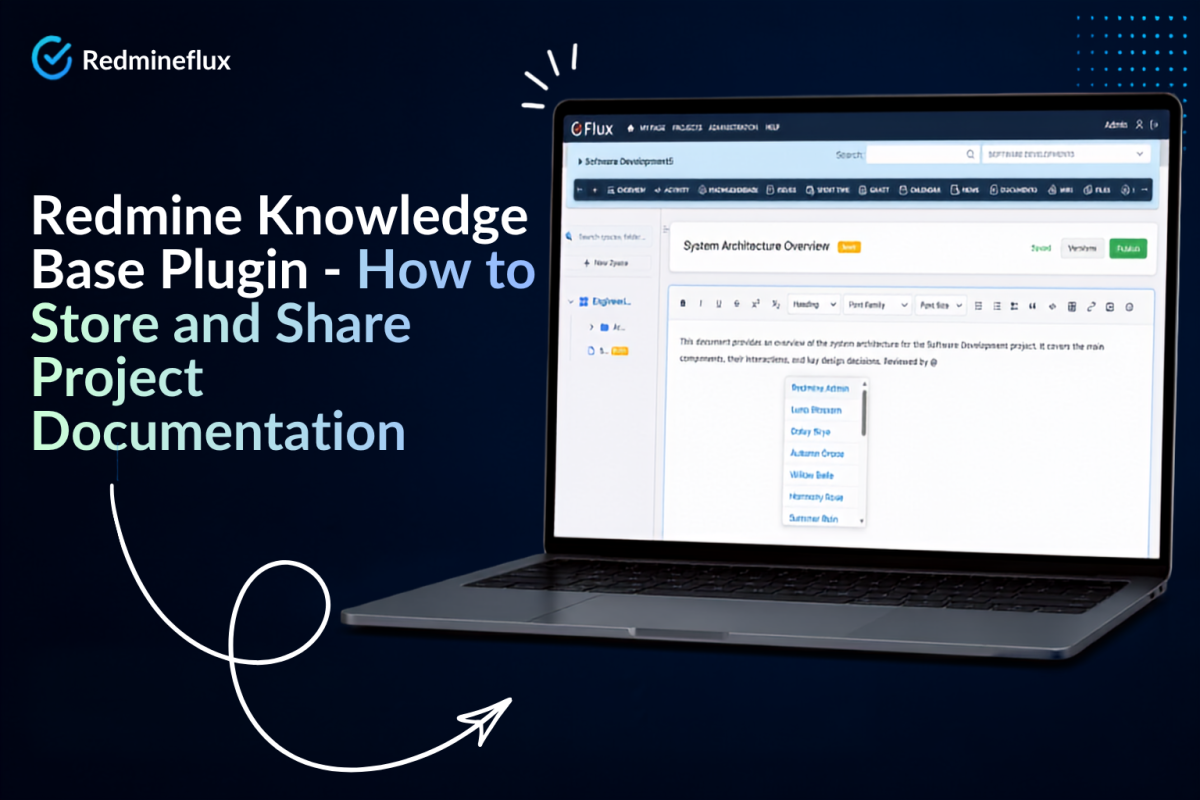
Redmine Knowledge Base Plugin — How to Store and Share Project Documentation

In practice, every development team working in Redmine eventually needs a Redmine knowledge base a structured place for requirements, architecture decisions, onboarding guides, API references, and deployment procedures. The question is where that place should be.

However, Redmine includes only a built-in wiki per project. Teams use it to capture notes and basic documentation. The problem emerges as projects grow and documentation accumulates: the wiki has no structure, no category system, no full-text search across projects, and no way to control who can read or edit specific articles. Everything lands in a flat list. Finding anything requires knowing where to look.

In short, the Redmineflux Knowledge Base Plugin adds structured documentation management directly to Redmine articles organised into categories, searchable across projects, versioned with full history, and governed by role-based access. Your team’s documentation lives in the same system as your issues, time logs, and project data without the structural limitations of the native wiki.

Does Redmine Have a Knowledge Base?

The short answer: Redmine includes a basic wiki per project a flat collection of pages with no categories, no cross-project search, and limited access control. The Redmineflux Knowledge Base Plugin transforms this into a structured documentation system with categories, full-text search, version history, and role-based access all inside your existing Redmine instance without a separate tool.

Get the Redmine Knowledge Base Plugin — One-Time Purchase

In practice, the native Redmine wiki works for small teams with limited documentation needs. It stores text, accepts links between pages, and keeps a basic edit history. When documentation grows beyond 20–30 pages, or when multiple teams need access to shared knowledge, the flat wiki structure creates more friction than it removes.

What the Knowledge Base Plugin Adds

The Redmineflux Knowledge Base Plugin adds a dedicated documentation layer to Redmine. It works alongside the native wiki rather than replacing it teams can maintain both, or migrate existing wiki content into the structured knowledge base.

Documentation Belongs Inside Your Project Tool

Structured Categories

The plugin organises articles into a category tree. A software development team might structure their knowledge base as:

  • Development → Architecture, API Reference, Code Standards
  • Operations → Deployment Procedures, Monitoring Setup, Incident Runbooks
  • Onboarding → New Developer Guide, Tool Setup, Team Processes
  • Client Projects → Project-specific documentation per client

Specifically, categories can be nested to whatever depth the team needs. Articles belong to a category, making navigation and discovery predictable rather than dependent on remembering a page title.

Full-Text Search Across Projects

The Knowledge Base Plugin adds full-text search across all articles in the knowledge base including articles across multiple projects. A developer searching for “deployment procedure” finds every article containing those terms, regardless of which project it belongs to.

In contrast, native Redmine wiki search is limited and not optimised for documentation retrieval. The Knowledge Base search is fast, accurate, and returns results ranked by relevance.

Version History and Article Rollback

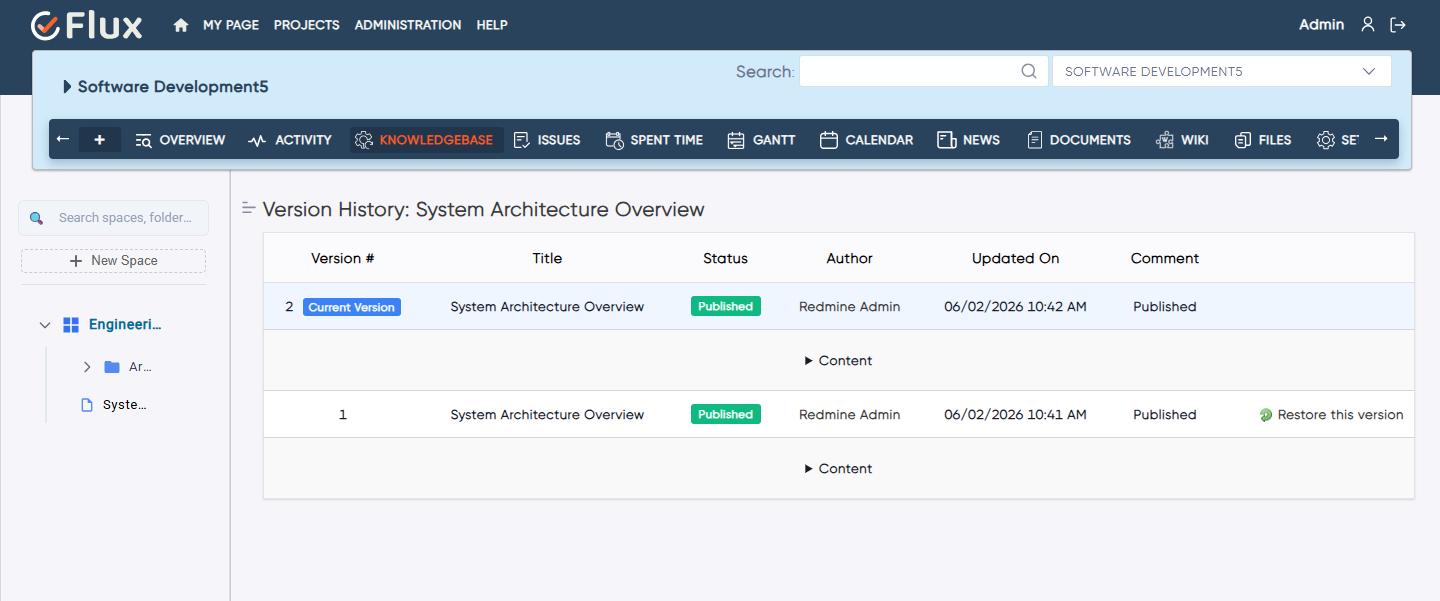
Every article update creates a new version. Specifically, the plugin stores the full version history who changed what, when, and what the previous version contained. Editors can compare any two versions side-by-side and roll back to a previous version if an update introduced an error.

For documentation that governs critical processes deployment procedures, compliance checklists, security configurations version history is a governance requirement, not a convenience.

Role-Based Access per Category

The plugin applies Redmine’s role-based access model to knowledge base categories. A category can be set to:

  • Public — readable by all project members
  • Private — readable only by specific roles (e.g., senior engineers, team leads)
  • Read-only for certain roles — visible but not editable by junior team members

This means sensitive documentation architecture decisions, security configurations, client-specific procedures can live in the knowledge base without being exposed to everyone with a Redmine account.

Article Ratings and Feedback

Additionally, team members can rate articles and leave improvement suggestions. As a result, documentation owners gain visibility into which articles are useful and which need updating. Articles with low ratings or active improvement requests surface to the knowledge base maintainer automatically.

See How It Organises Documentation Inside Redmine — Book a Free Demo

How Teams Use the Knowledge Base in Practice

Onboarding New Team Members

In practice, the knowledge base is the first resource a new developer touches. The onboarding category contains environment setup instructions, tool access guides, team process documentation, and code standards. Everything is in one place, searchable, and up to date.

Without a structured knowledge base, new developers ask senior team members the same questions repeatedly. As a result, that informal knowledge transfer is slow, inconsistent, and invisible. A structured knowledge base makes onboarding self-service for the questions it covers.

Technical Documentation Alongside Development Work

Because the Knowledge Base Plugin lives inside Redmine, documentation can be linked directly to issues. An architecture article explaining a design decision can be linked from the issue where that decision was made. A deployment procedure can be linked from the version it applies to. Documentation and project work stay connected.

In contrast, this connection is not possible with external documentation tools like Confluence or Notion the link between “the decision” and “the documentation explaining it” requires manual maintenance across systems.

Client-Specific Documentation

For agencies and consultancies managing multiple client projects in Redmine, the knowledge base supports a separate category structure per client. Client-specific procedures, handover notes, and configuration documentation are organised under the client’s project category and accessible only to team members with the relevant role.

The Custom Dashboard Plugin adds a live project health view alongside your documentation — keeping delivery data and knowledge in the same workspace.

Knowledge Base vs Redmine Native Wiki — Key Differences

Capability Redmine Native Wiki Knowledge Base Plugin
Article organisation Flat list per project Category tree, nested
Search Basic, limited Full-text, cross-project
Version history Basic edit log Full version comparison and rollback
Role-based access Project-level only Per-category control
Article ratings None Built in
Cross-project visibility No Yes

Common Questions

Does Redmine have a knowledge base?

Redmine includes a basic wiki per project flat pages with no categories or cross-project search. The Redmineflux Knowledge Base Plugin adds a full knowledge base with structured categories, full-text search across projects, version history, rollback, and role-based access per category.

Can I search across all projects in the Redmine Knowledge Base?

Yes. The Knowledge Base Plugin supports full-text search across all articles in the knowledge base, including articles from multiple projects. Native Redmine wiki search is limited to the current project and does not support full-text retrieval.

Is there version history in the Redmine Knowledge Base Plugin?

Yes. Every article update creates a new version with a timestamp and the name of the editor. Previous versions are stored and accessible. Editors can compare any two versions and roll back to an earlier version at any time.

Can I restrict access to specific knowledge base articles or categories?

Yes. The Knowledge Base Plugin applies role-based access control at the category level. Specific categories can be set to private, read-only for certain roles, or fully public independently of the access settings on other categories.

Which Redmine versions does the Knowledge Base Plugin support?

The Redmineflux Knowledge Base Plugin supports Redmine 5.0.x, 5.1.x, and 6.0.x. Teams running Redmine 4.x should contact support before purchasing to confirm compatibility.

In short, documentation that lives outside your project management system is documentation your team will not use consistently. The Knowledge Base Plugin brings structured, searchable, governed documentation inside Redmine where your team already works. The wiki was a starting point. Consequently, the Knowledge Base Plugin is the destination.

Get Redmine with Knowledge Base Pre-Installed — Explore Managed Cloud

Related Reading


Categories
Informational

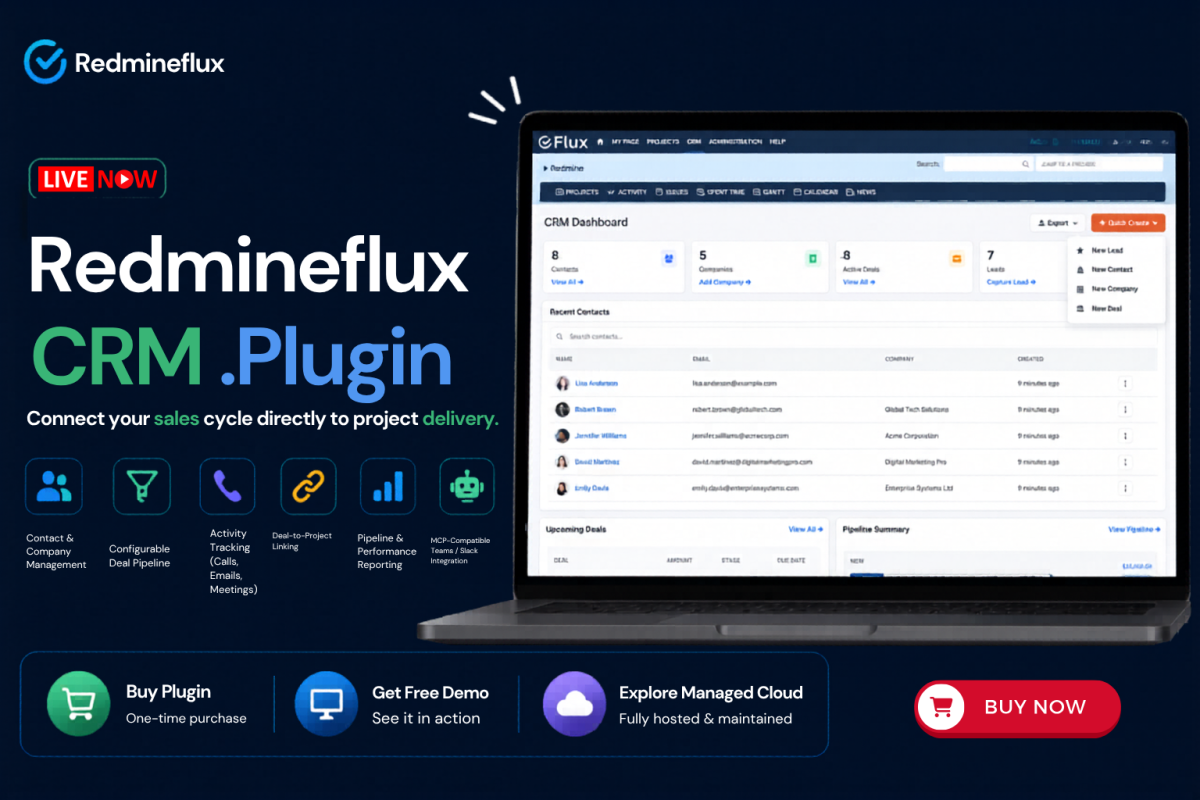
Introducing the Redmine CRM Plugin from Redmineflux — Now Available

Invoice Redmine Plugin

We are launching the Redmine CRM Plugin by Redmineflux built to connect your sales cycle directly to project delivery.

If your sales team closes deals in a separate tool, a data handoff exists for every deal that converts. In practice, that handoff always drops something scope details, client history, and negotiated terms the project team never receives in full.

The CRM Plugin solves this by keeping contacts, deals, and activity history inside Redmine. Your sales and delivery teams share one environment from the first prospect call to the final delivery milestone. The CRM Plugin is available now and installs on your existing Redmine instance.

Get Free Demo

What Is the Redmine CRM Plugin?

Answer capsule: The Redmineflux CRM Plugin is a Redmine contact and deal management plugin that adds CRM capabilities natively inside Redmine. It supports configurable deal pipelines, activity tracking for calls and meetings, deal-to-project linking at closure, and pipeline reporting all without a separate CRM subscription. Available as a one-time purchase.

In short, the plugin removes the tool boundary between pre-sales and project delivery.

In fact, your team already tracks all project work inside Redmine. The CRM Plugin extends that same environment back into the sales cycle so the full client relationship lives in one place.

Why We Built This

Every services team we spoke to had the same pattern.

In practice, sales closed deals in a separate CRM and wrote a handoff document summarising key context. Then delivery teams read that document, asked follow-up questions, and eventually started work sometimes days after the deal closed.

That process introduces data loss at every step. As a result, project teams start without the full picture of what sales discussed and agreed. Teams apply billing rates inconsistently because Redmine does not show the deal terms. Clients notice when delivery assumptions differ from what sales promised during the engagement.

We built the CRM Plugin to eliminate that boundary entirely.

What Is Included at Launch

Contact and company management Create and maintain structured records for every client and prospect. Each contact links to a company and holds a complete interaction history with all deals and projects. Custom fields support industry, company size, region, and any classification your team already uses.

Configurable deal pipeline Build a pipeline with stages that reflect your actual sales process not a generic template. Specifically, each deal tracks value, close probability, expected close date, and assigned owner, with a full stage-change history recorded automatically.

Activity logging calls, emails, and meetings Log every client interaction directly against a contact or deal. As a result, the full pre-sales picture is visible to both sales and delivery teams before any project kickoff conversation.

Deal-to-project linking When a deal closes, link it to an existing or new Redmine project in one action. Consequently, the delivery team begins work with the complete deal context already inside the project no handoff document required.

Pipeline and performance reporting Track win rate, deal velocity, and average deal size from within Redmine. Additionally, deal-to-project conversion reporting shows how efficiently your team moves from sales close to delivery start.

MCP-compatible connect via Teams or Slack The Redmineflux CRM Plugin is fully MCP-compatible and supports AI assistant integration. Connect Microsoft Teams or Slack to query deal status, contact records, and pipeline data through your AI assistant without opening Redmine directly.

Who This Is For

Redmineflux built the CRM Plugin for services teams and agencies where sales and delivery share the same organisation.

Role What changes
Sales Lead Full pipeline and contact management inside the tool the delivery team already uses daily
Project Manager Complete deal context at project start — no handoff document to chase or reconstruct
Delivery Head Sales pipeline visibility alongside delivery status in one unified Redmine environment
IT Director CRM and project delivery in one system — one data store, one audit trail, one tool to govern

However, it is not the right fit for teams with no pre-sales activity or those on fixed-fee retainers with no per-client deal tracking.

Works With the Helpdesk and Dashboard Plugins

If your team uses the Redmineflux Helpdesk Plugin for client support, the CRM Plugin connects directly to it. Specifically, support escalations reference the full contact and deal history from the same Redmine issue view no context switching required.

Similarly, the Dashboard Plugin surfaces pipeline data alongside delivery metrics inside Redmine. The Timesheet Plugin connects deal activity records to billable time, giving management a complete view of pre-sale and delivery investment per client.

Pair it with the Invoice Plugin to generate client invoices directly from Redmine time logs — the full sales-to-billing loop in one workspace.

Redmine CRM Plugin vs Running a Separate CRM

CRM Plugin Separate CRM Tool
Where sales data lives Inside Redmine Separate system
Deal-to-project handoff Automatic link at closure Manual briefing document
Delivery team access Immediate — same environment Requires CRM account or export
Contact history during delivery Visible in project view Locked in sales tool
Pipeline and delivery reporting One system Cross-tool data export required
Additional subscription cost None Monthly CRM fee

Frequently Asked Questions

Can I import contacts from an existing CRM into the Redmine CRM Plugin?

Yes the CRM Plugin supports contact import from CSV. Export your existing contacts from any CRM or spreadsheet, then import them directly into Redmineflux. Field mapping is configurable at import time so your existing data structure maps correctly to the plugin’s contact fields.

Can the deal pipeline stages be customised to match our sales process?

Yes. Pipeline stages are fully configurable in the plugin admin settings. Add, rename, reorder, and remove stages to match your specific sales process. Specifically, you can configure different pipelines for different deal types within the same Redmine instance.

Does the CRM Plugin log emails automatically?

The CRM Plugin supports manual activity logging for emails, calls, and meetings from within Redmine. Automatic email sync is available via configuration with the Helpdesk Plugin’s email integration. Check the plugin documentation for full setup details.

Which Redmine versions does the CRM Plugin support?

Redmineflux tests and supports the CRM Plugin on Redmine 5.0.x, 5.1.x, and 6.0.x. Contact support before installing on an older version to confirm compatibility before purchasing.

Is the Redmine CRM Plugin MCP-compatible?

Yes. The CRM Plugin is fully MCP-compatible. Connect Microsoft Teams or Slack to query contacts, deals, and pipeline data through your AI assistant without opening Redmine directly.

Get the CRM Plugin Today

The Redmineflux CRM Plugin is live now.

Buy Plugin — One-time purchase, installs on your Redmine today

Categories
Informational

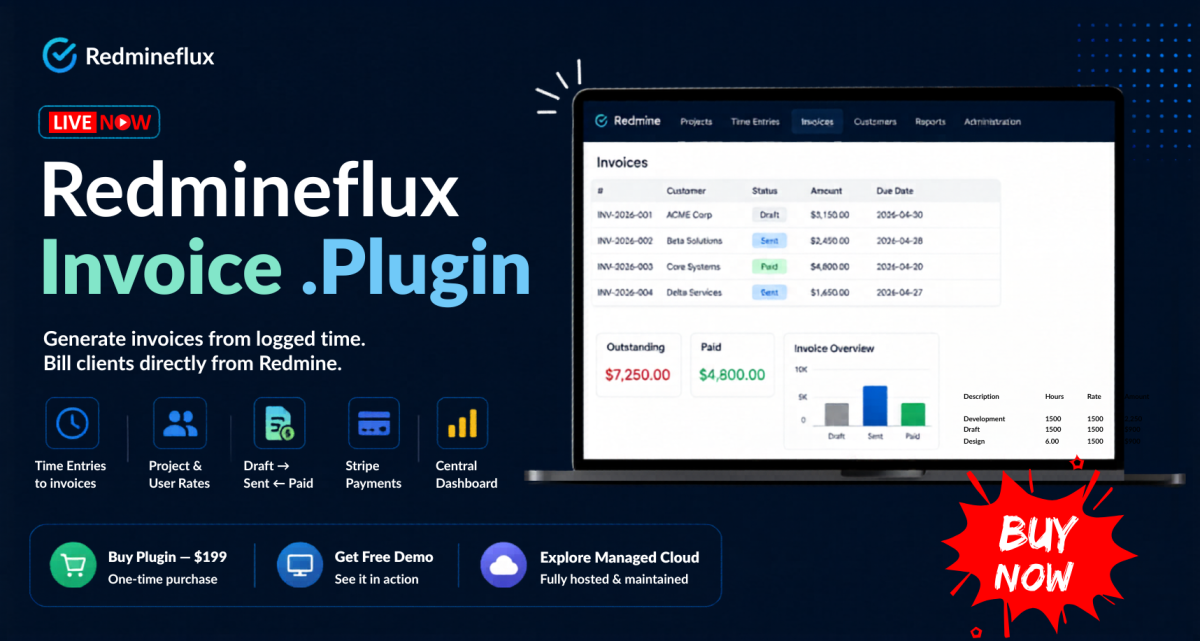
Introducing the Redmine Invoice Plugin from Redmineflux — Now Available

We are launching the Redmineflux Invoice Plugin a Redmine invoice plugin built to close the gap between time tracking and client billing.

If your team tracks time in Redmine but invoices clients from a spreadsheet or a separate billing tool, this plugin is built for you.

It connects Redmine’s time tracking directly to client invoicing so the plugin generates every invoice from actual logged hours, not manually reconstructed data.

Available now. One-time purchase at $199.

Get Free Demo

What Is the Redmine Invoice Plugin?

Answer capsule: The Redmineflux Invoice Plugin is a Redmine billing plugin that generates client invoices directly from logged time entries. It supports configurable billing rates per project or per user, a Draft → Sent → Paid invoice workflow, Stripe payment integration, and a central invoice dashboard all inside Redmine. Available as a one-time purchase at $199.

In short, the Invoice Plugin is the missing link between time tracking and client billing in Redmine.

In fact, you already capture time against issues and projects. The plugin reads those entries, applies your billing rates, and builds an invoice without any manual data transfer, spreadsheet work, or second system.

Why We Built This

Every Redmine team we talked to had the same pattern.

In practice, teams tracked time carefully inside Redmine. Then at billing time, someone exported a timesheet, opened a spreadsheet, applied rates manually, and sent an invoice from a separate tool.

That process introduces billing leakage. As a result, hours get missed near period close. Teams apply rates inconsistently. Disputes have no audit trail. Invoice cycles take days instead of minutes.

We built the Invoice Plugin to eliminate that gap entirely.

What Is Included at Launch

Invoice generation from Redmine time entries Select a project, a date range, and billable activities. The plugin builds the invoice from matching time entries no manual line items.

Project billing rates and user-specific rates Set a flat rate per project or assign individual hourly rates per team member. Specifically, rates apply automatically at invoice generation.

Draft → Sent → Paid workflow Invoices start as editable drafts. Once sent to the client, they lock. In addition, the team records payments directly in the plugin, moving the invoice to Paid status.

Stripe payment integration Configure Stripe in the plugin settings to add a payment link inside every dispatched invoice. Clients pay directly from the email.

Central invoice dashboard View all invoices across every project outstanding, sent, and paid from one screen. No navigating project by project to check billing status.

Customer records module Create client records with contact details, billing address, and invoice history. Link each project to its customer so the plugin always associates each invoice with the right client.

Company branding and email templates Add your logo, company name, and address. Customise the invoice email with dynamic fields client name, invoice number, due date for professional, consistent communication.

Who This Is For

Redmineflux built the Invoice Plugin for teams that bill clients by the hour and currently manage that billing process outside Redmine.

Role What changes
Finance Lead / Billing Manager Invoices built from verified time data — no spreadsheet reconstruction
Project Manager Every line item is traceable to a logged Redmine time entry
Business Owner / MSP Lead Outstanding, sent, and paid revenue visible from one dashboard
IT Director One system of record for project work and client billing with full audit trail

However, it is not the right fit for teams on fixed-price contracts with no per-hour billing requirement.

Works With the Timesheet Plugin

If your team uses the Redmineflux Timesheet Plugin for time approval workflows, the Invoice Plugin connects naturally to it.

Consequently, approved time entries from the Timesheet Plugin feed directly into invoice generation. The result is a complete billing pipeline inside Redmine:

Time logged → Manager approval → Invoice generated → Client payment tracked

No exports. No sync. One environment from first hour logged to final payment received.

Pricing

$199 — One-Time Purchase Additionally, it includes 12 months of updates and standard support. Installs on your existing self-hosted Redmine instance.

Need more than 100 users? Contact us for extended licensing based on your user count.

Want zero infrastructure overhead? The Invoice Plugin is also available pre-installed on Redmineflux Managed Cloud fully hosted and maintained by the Redmineflux team.

Redmine Invoice Plugin vs Your Current Process

Invoice Plugin Spreadsheet + Separate Tool
Invoice source Redmine time entries (automatic) Manual data transfer
Billing rate enforcement Configured per project or per user Applied manually per invoice
Audit trail Linked to original time entry Separated from time data
Client dispute resolution Direct link to logged entry Estimate or memory
Online payment Stripe link in invoice email External payment process
Invoice cycle time Minutes Hours to days

Frequently Asked Questions

What versions of Redmine does the Invoice Plugin support?

Redmineflux tests and supports the Invoice Plugin on Redmine 5.0.x and 6.0.x. Check the compatibility notes on the product page before purchasing. Contact support if you are running an older version.

Can I set different billing rates for different team members on the same project?

Yes. The plugin supports user-specific rates at the project level. Assign an hourly rate to individual users within each project. The plugin applies the correct rate per user automatically when generating invoices.

Does the Invoice Plugin use Redmine’s existing roles and permissions?

Yes. The Invoice Plugin uses Redmine’s native role and project structure. Enable the invoice module per project through Redmine’s standard module settings. As a result, you need no separate access system.

Can clients pay invoices online?

Yes. Configure Stripe in the plugin settings to generate a payment link in every dispatched invoice email. Clients pay directly without additional steps on their end.

Is this a subscription or a one-time purchase?

One-time purchase at $199. Includes 12 months of updates and standard support. After 12 months, the plugin continues to work updates require renewal.

Get the Invoice Plugin Today

The Redmineflux Invoice Plugin is live now.

Buy Plugin — $199 — One-time purchase, installs on your Redmine today!

Categories
Informational

Redmine as a Helpdesk and Ticketing Tool — How to Set It Up

Redmine is used for development work. It is less commonly known as a helpdesk platform but for teams that already run Redmine, adding a support ticket workflow to the same system has a clear advantage: your support team and your development team work in one place, with a direct path from “client reported a bug” to “developer assigned to fix it.”

In practice, the challenge is that native Redmine does not have a helpdesk structure. There is no client-facing ticket submission form, no SLA clock, and no support queue view separate from the development issue list. As a result, support requests end up mixed with development tasks, making it difficult to separate, prioritise, and report on support work independently.

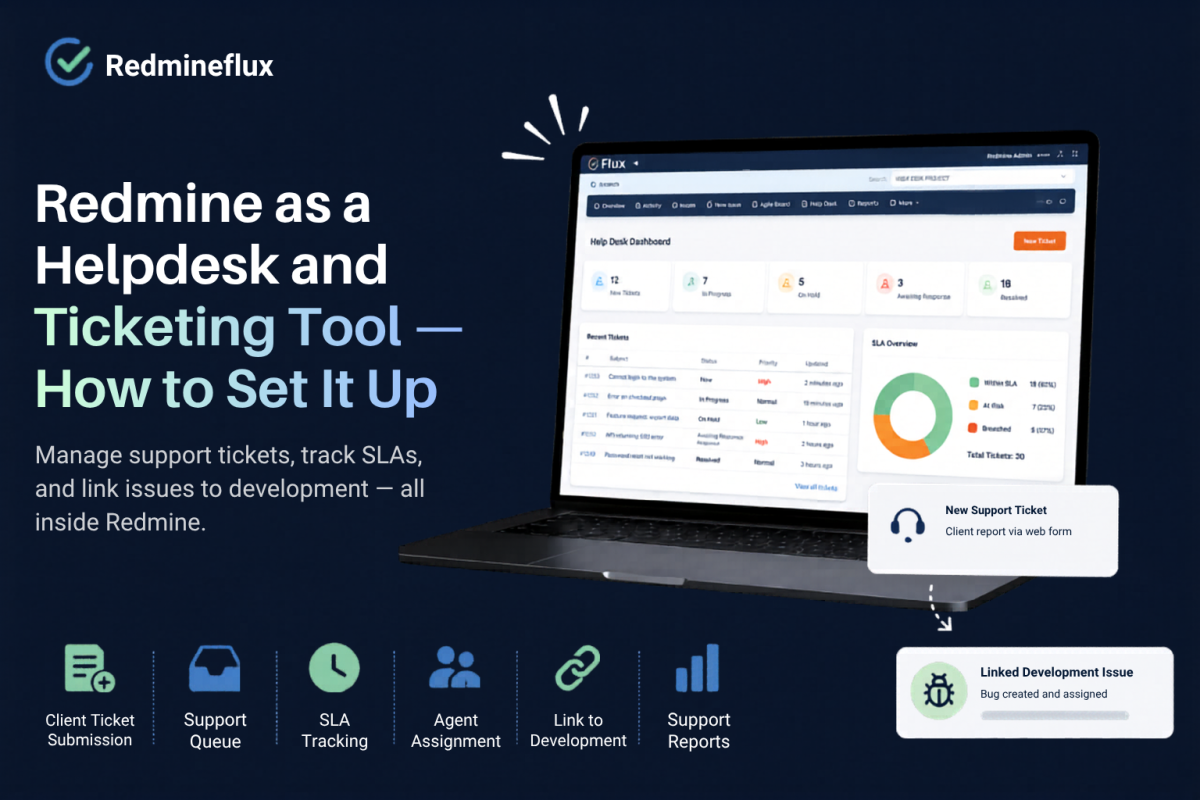
The Redmineflux Help Desk Plugin adds a structured support workflow to Redmine. Clients submit tickets through a web form or by email. Tickets arrive in a dedicated support queue. SLA timers track first response and resolution targets. Support agents manage resolution inside Redmine. When a ticket reveals a bug, the support agent creates a linked development issue in one action.

Can Redmine Be Used as a Ticketing Tool?

The short answer: Yes, Redmine can function as a ticketing and helpdesk tool with the Redmineflux Help Desk Plugin. Native Redmine tracks issues but has no client-facing ticket intake, SLA tracking, or support queue. The Help Desk Plugin adds these capabilities directly inside Redmine, so support tickets and development issues share the same system, projects, and reporting without running a separate helpdesk platform.

In fact, many teams run Redmine and a separate helpdesk tool in parallel Freshdesk, Zendesk, or a shared inbox. The problem is that when a support ticket becomes a bug, the information lives in two systems and the handoff is manual. Something always gets lost or delayed in that handoff.

What the Help Desk Plugin Adds

Client-Facing Ticket Submission

The Redmineflux Help Desk Plugin adds a client-facing ticket submission form. Clients do not need a Redmine account. They submit a request through the web form, and the plugin creates an issue in the designated support project automatically.

Ticket intake can also be configured via email. Redmine parses client emails sent to a designated support address and converts them into issues automatically. The plugin captures the client’s email address and uses it for all follow-up correspondence.

For IT support teams, this replaces a shared inbox with a structured ticket system without requiring clients to learn Redmine.

See how support tickets flow from customer request to developer resolution inside Redmine

Dedicated Support Queue

Support tickets arrive in a queue view separate from the main issue tracker. Support agents see open tickets, their current status, the assigned agent, and the time elapsed since submission in a single view designed for support workflow rather than development issue tracking.

Consequently, the queue separates support work from development work visually. Developers see their issues on the project board or in the issue list. Support agents see their ticket queue. Both views draw from the same underlying Redmine data.

SLA Tracking

The plugin adds SLA tracking per ticket. SLA rules are configured by the Redmine administrator:

  • First response time — the maximum time before a support agent must make first contact with the client
  • Resolution time — the maximum time for full ticket resolution

When a ticket is approaching or has exceeded an SLA threshold, the queue view highlights it. Support managers can see at a glance which tickets are at risk and intervene before an SLA breach.

SLA tracking turns support work into a measurable, reportable activity rather than an informal email exchange.

Agent Assignment and Escalation

Support managers assign tickets to agents the same way Redmine assigns development issues to developers. Additionally, a queue manager can assign agents manually, or the plugin assigns them automatically via round-robin routing.

When a ticket requires escalation to a senior engineer, to the development team, or to a third party the escalation is recorded as an issue status change with a comment. The escalation path is visible in the ticket history.

Bug Linking from Support Tickets

When a support ticket reveals a bug, the support agent creates a linked development issue directly from the ticket record. Specifically, the new issue inherits relevant context from the ticket: the problem description, the client’s environment details, and any steps to reproduce captured during support.

The development issue and the support ticket remain linked. When a developer resolves the issue, Redmine notifies the support agent. They can then update the client with the resolution through the same ticket record.

This direct path from client report to development fix without copy-pasting between two systems is the primary reason development-focused teams prefer keeping helpdesk inside Redmine.

Explore how support teams and developers work together in a single Redmine workflow

Support Reporting

The plugin provides support-specific reporting separate from the development issue reports:

  • Open tickets by status and age
  • SLA compliance rate for first response and resolution
  • Tickets by client or account
  • Agent workload open and closed tickets per agent
  • Average resolution time over a selected period

Support managers use these reports to assess team capacity, identify recurring issue types, and demonstrate SLA performance to clients.

Want to see the helpdesk workflow in a live Redmine environment? Book a Free Demo 30 minutes covers ticket intake, SLA configuration, and the bug linking workflow.

Who Uses Redmine as a Helpdesk?

Software development teams offering client support — teams that build and maintain software for clients frequently have a support obligation alongside active development. As a result, keeping both workflows in Redmine eliminates the overhead of running parallel systems.

For teams handling repeat clients, the Redmineflux CRM Plugin keeps client contacts, deal history, and communication inside the same Redmine workspace as your support tickets.

IT operations teams — internal IT departments managing infrastructure requests, access provisioning, and system issues benefit from a structured ticket system that connects directly to the issue tracker used for planned IT work.

SaaS and product companies — product teams that handle inbound support from end users can route those tickets to the support queue in Redmine and link recurring issues to the development backlog without a separate integration layer.

Setting Up Redmine as a Helpdesk — Three Steps

Step 1 — Create a Dedicated Support Project

Create a Redmine project specifically for support tickets. In this way, support work stays separate from development work at the project level while sharing the same Redmine instance, members, and reporting infrastructure.

Configure the trackers for this project to include a “Support Ticket” tracker with statuses appropriate for support workflows: New, Assigned, Pending Client, Resolved, Closed.

Step 2 — Configure the Help Desk Plugin

Install the Help Desk Plugin and configure it for the support project:

  • Set up the ticket submission form or email intake address
  • Define SLA rules for first response and resolution times
  • Configure agent assignment rules
  • Set notification rules for SLA alerts and escalation triggers

Step 3 — Connect to Development Projects

Define the relationship between the support project and your development projects. When a support agent creates a bug issue from a ticket, specify which development project the issue should land in. This routing ensures bugs from client tickets arrive in the correct development backlog without manual project selection.

Once routing is configured, the path from client report to developer task is automatic.

How the Helpdesk Connects to the Notification Plugin

The Redmineflux In-App Notification Plugin complements the helpdesk workflow. Support agents receive in-app alerts when a ticket is assigned, when a client responds, or when an SLA threshold is approaching without relying solely on email.

For development teams where Redmine is the primary work interface, in-app notifications keep support ticket awareness inside the tool rather than requiring a context switch to email.

Common Questions

Can Redmine be used as a ticketing tool?

Yes. With the Redmineflux Help Desk Plugin, Redmine functions as a full ticketing and helpdesk system. The plugin adds client-facing ticket intake, a dedicated support queue, SLA tracking, agent assignment, and direct bug linking to the development issue tracker all within your existing Redmine instance.

Do clients need a Redmine account to submit support tickets?

No. The Help Desk Plugin provides a client-facing submission form that does not require a Redmine account. Clients can also submit tickets by sending an email to a designated support address. Redmine creates the ticket automatically and uses the client’s email for follow-up correspondence.

Can I track SLA performance in Redmine?

Yes. The Help Desk Plugin includes SLA rules for first response and resolution times. Tickets approaching or exceeding SLA thresholds are highlighted in the support queue. The plugin’s reporting includes SLA compliance rate over a selected period.

Does the helpdesk plugin work with the rest of Redmine?

Yes. Tickets created by the Help Desk Plugin are Redmine issues they are visible in project reports, can be assigned to members, linked to development issues, logged with time entries, and reported on using standard Redmine reporting tools. The plugin adds a helpdesk layer; it does not replace the underlying Redmine issue system.

Which Redmine versions does the Help Desk Plugin support?

The Redmineflux Help Desk Plugin supports Redmine 5.0.x, 5.1.x, and 6.0.x. Teams running earlier versions should contact support before purchasing to confirm compatibility.

A support team running a shared inbox alongside a Redmine development team loses traceability at every handoff. Client tickets that reveal bugs get copy-pasted into Redmine. Bug fixes that resolve client issues never make it back to the ticket record. As a result, the client never gets a proper update. Ultimately, the Help Desk Plugin eliminates these gaps support work and development work share the same system, the same issue records, and the same reporting infrastructure.

Book a free demo and see the complete helpdesk workflow running live in Redmine
Categories
Informational

Redmine Workload Plugin — How to Manage Team Capacity and Resource Distribution

Redmine shows who is assigned to what. It does not show how much capacity each team member has left, whether anyone is overloaded across their project assignments, or whether the team has enough capacity to take on a new request without slipping existing commitments.

In practice, project managers working with default Redmine answer these questions by opening each developer’s assigned issue list, counting the open issues and estimated hours, and mentally building a capacity picture. This works for a team of three. However, it breaks down for a team of ten managing multiple concurrent projects.

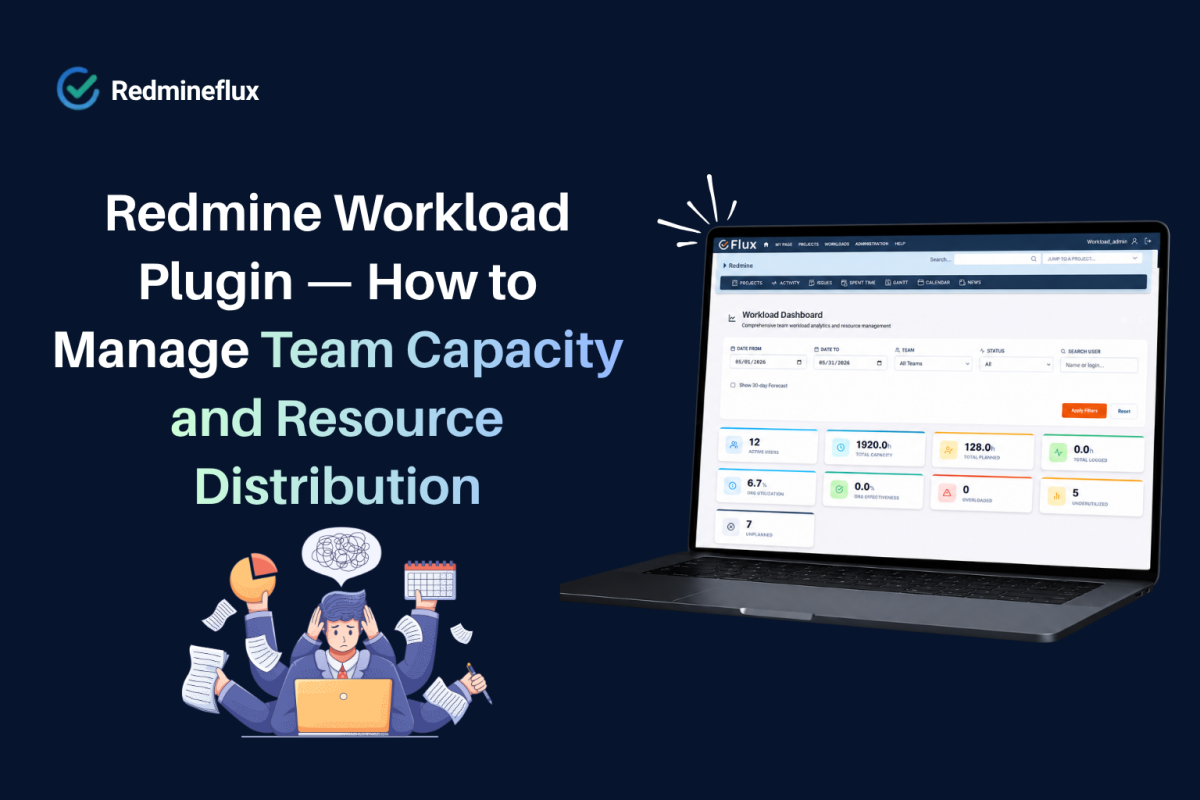
Specifically, the Redmineflux Workload Plugin adds a capacity view to Redmine. Project managers see every team member’s current load across all projects, across the sprint period in a single structured view. Overloaded team members are visible at a glance. As a result, available capacity is quantified rather than estimated.

What Does the Redmine Workload Plugin Show?

The short answer: The Redmineflux Workload Plugin adds a workload view to Redmine showing each team member’s assigned issue hours against their available capacity across all projects and configurable date ranges. Project managers see who is overloaded, who has capacity, and how work is distributed across the team. The view updates in real time as issues are assigned, completed, or rescheduled no manual calculation required.

What the Workload Plugin Adds

Team Capacity View

The plugin adds a workload view accessible from the project or global navigation. The view shows a matrix of team members against dates typically the current sprint or a configurable week/month range.

Each cell shows the number of hours assigned to that team member on that date, drawn from estimated hours on open issues due within the period. A colour-coded indicator flags:

  • Green — within capacity (below the team member’s configured available hours per day)
  • Amber — approaching capacity (80–100% utilised)
  • Red — overloaded (assigned hours exceed available hours)

As a result, project managers read this view in seconds. Overloads are visible without opening individual issue lists or running reports.

Cross-Project Workload

The workload view aggregates assignments across all projects the team member participates in. A developer assigned to three concurrent projects shows their total load from all three not just the project the project manager is currently viewing.

In fact, this is the critical gap in native Redmine. Specifically, a project manager overseeing one project can only see assignments within that project. The Redmineflux Workload Plugin shows the full picture including work from projects the project manager may not have direct visibility into.

Sprint-Level Workload Planning

When used alongside the Agile Board Plugin, the workload view filters to show load within the current sprint period. Before sprint planning, the project manager checks the workload view to confirm each developer has sufficient capacity for their proposed sprint allocation.

Issues under consideration for the sprint but not yet assigned appear in a planning mode project managers can model the load impact of different sprint compositions before committing.

Individual Availability Configuration

Additionally, each team member’s available hours per day are configurable in the plugin settings. The plugin accounts accurately for part-time team members, those with recurring meetings, and those on reduced capacity due to leave so the workload calculation reflects real availability, not a generic eight-hour default.

Holiday and leave periods are also configurable. A team member on annual leave for a week shows zero available hours for that period issues scheduled during that period flag immediately as scheduling conflicts.

Workload Reports

The plugin generates workload summary reports over a selected period. Reports show:

  • Total assigned hours vs available hours per team member
  • Issues contributing to each team member’s load
  • Overloaded periods and under-utilised periods
  • Cross-project load distribution

Consequently, project managers use these reports for sprint retrospectives, resource allocation decisions, and capacity planning ahead of new project intake.

Want to see the workload view configured for a multi-project team in Redmine? Book a Free Demo →

How Workload Connects to the Rest of Redmine

The workload view draws from the same issues and time estimates the team already maintains. As a result, there is no parallel system to keep updated.

When a developer updates an issue’s estimated hours, the workload view reflects the change immediately. When an issue is closed, it drops out of the capacity calculation for future dates. The view is always current.

The Timesheet Plugin records actual time logged against issues. The workload view shows planned hours (from estimates); the timesheet shows actual hours logged. Together, they give project managers both sides of the capacity picture what was planned and what was actually spent.

The Gantt Chart Plugin shows the release timeline. Before rescheduling an issue to an earlier date on the Gantt, the project manager checks the workload view to confirm the assigned developer has capacity on those dates. This prevents rescheduling decisions that create downstream overloads.

The Custom Dashboard Plugin can surface workload summary widgets showing current team utilisation rate or flagging overloaded team members so project managers see capacity signals on their dashboard without navigating to the workload view separately.

Common Questions

Does Redmine show team workload?

Native Redmine shows individual assigned issue lists but has no team workload view. The Redmineflux Workload Plugin adds a capacity matrix showing each team member’s assigned hours against their available hours across all projects and sprint periods with colour-coded overload indicators.

How does the Redmine Workload Plugin calculate capacity?

The plugin uses the estimated hours on open issues due within the selected period, compared against each team member’s configured available hours per day. Part-time schedules, leave periods, and holidays are configured per team member for accurate capacity calculations.

Can I see workload across multiple projects in Redmine?

Yes. The Workload Plugin aggregates assignments across all projects each team member participates in not just the current project. This cross-project view is the primary capability that native Redmine does not provide.

Can I plan sprint allocations using the workload view?

Yes. The workload view supports a sprint planning mode where proposed issue allocations are modelled before being committed. Project managers check capacity impact before finalising sprint assignments preventing overloads before they happen rather than discovering them after stand-up.

Which Redmine versions does the Workload Plugin support?

The Redmineflux Workload Plugin supports Redmine 5.0.x, 5.1.x, and 6.0.x. Teams running Redmine 4.x should contact support before purchasing to confirm compatibility.

Capacity problems that are visible before sprint planning are solvable. Capacity problems discovered during delivery are expensive. The Workload Plugin moves the visibility point earlier so project managers make resourcing decisions with accurate data rather than optimistic estimates.

Explore Managed Cloud — Redmine with all plugins pre-installed, including Workload →

Categories
Informational

Redmine Kanban Board — How to Set Up and Run Kanban in Redmine

In essence, Redmine is built around issue lists. Every project has a tracker, every issue has a status, and every team has a workflow. However, what Redmine does not have is a visual board that surfaces where each issue currently sits in that workflow. There is no column layout, no drag-and-drop status update, and no WIP limit enforcement. Teams that want to run Kanban in Redmine either improvise with filters and saved queries, or they add a separate tool alongside Redmine.

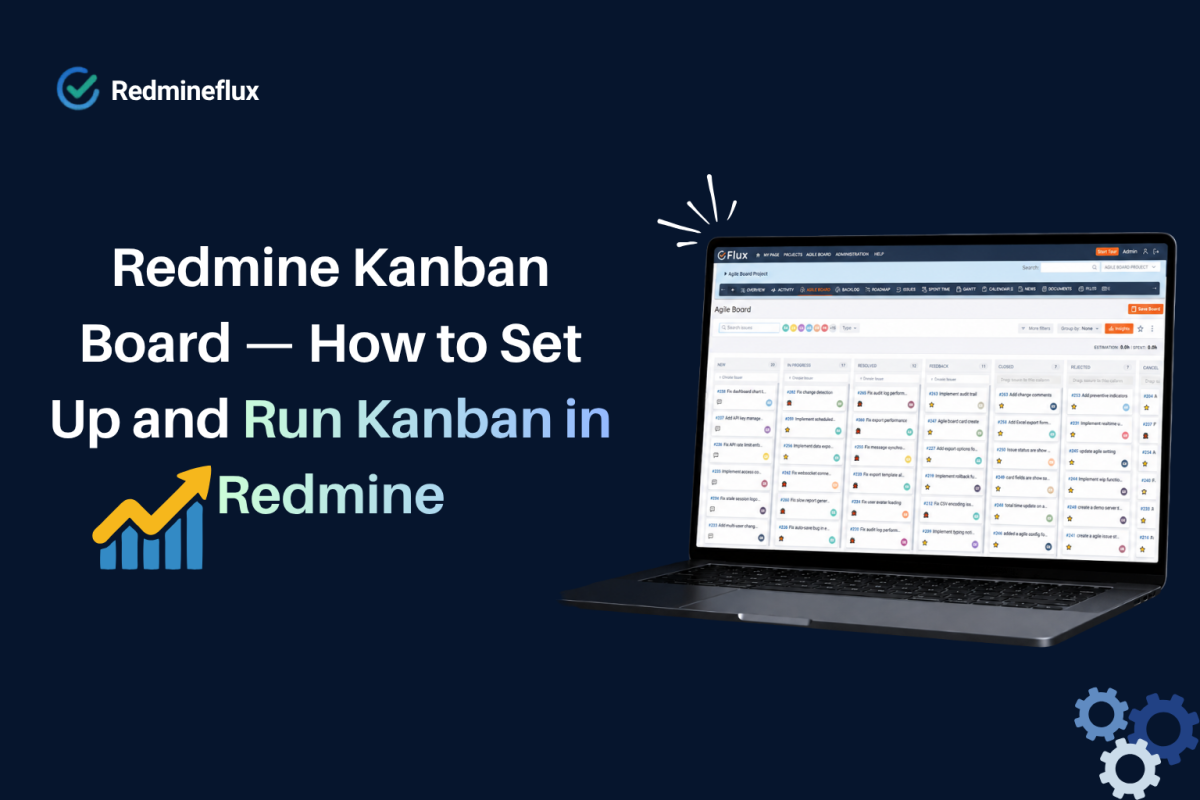
The Redmineflux Agile Board Plugin adds a proper Kanban board directly inside Redmine. It maps your existing issue statuses to board columns, lets developers move cards between columns by dragging, enforces WIP limits per column, and supports swimlanes for organising work by assignee, version, or priority. Your issues stay in Redmine. Your team works from a board.

This guide explains what Kanban in Redmine looks like, how to configure the board, and how each capability maps to real development workflows.

Does Redmine Have a Kanban Board?

The short answer: Redmine does not have a built-in Kanban board. The default issue list view shows issues in a flat table with filters. The Redmineflux Agile Board Plugin adds a full Kanban board to Redmine columns mapped to your workflow statuses, drag-and-drop card movement, WIP limits, swimlanes, and a Global Board across all projects. No separate tool is needed.

Redmine’s default interface is list-based by design. You can filter issues by status, tracker, assignee, and version but you cannot visualise them as cards moving across a workflow. As a result, Kanban-style visibility requires either building complex saved queries per status (which most teams abandon quickly) or adding a board view through a plugin.

What the Agile Board Plugin Adds for Kanban Teams

The Redmineflux Agile Board Plugin adds a complete Kanban layer to your existing Redmine environment. It works with the issues, statuses, and projects already in your Redmine instance no data migration, no parallel system.

Columns Mapped to Your Workflow Statuses

The board reads your existing Redmine issue statuses and maps them to columns. A typical development workflow maps as follows:

  • Backlog → Backlog status
  • In Progress → In Progress status
  • In Review → In Review / Testing status
  • Done → Resolved / Closed status

Specifically, you configure which statuses appear as columns and in which order. Statuses you do not want on the board such as archived or internal statuses can simply be left out. The board reflects your actual workflow, not a generic template.

Drag-and-Drop Status Updates

Developers move issues between columns by dragging the card. When a developer drops a card into a new column, Redmine updates the issue status automatically. Developers need no separate status edit.

As a result, this closes the gap between the board view and the actual issue state. A developer who moves a card from “In Progress” to “In Review” updates the issue status in Redmine in the same action. The issue list, the board, and the reports all reflect the same current state.

WIP Limits Per Column

In practice, WIP limits prevent columns from becoming bottlenecks silently. The Agile Board Plugin lets you set a maximum card count per column. When a column reaches its limit, the column header turns red. The team can see immediately that work is piling up before it becomes a blocker.

WIP limits are optional but recommended for teams running disciplined Kanban. A typical configuration limits “In Review” to the number of reviewers on the team so cards cannot accumulate in review faster than the team can process them.

Swimlanes for Structured Visibility

Swimlanes divide the board into horizontal rows. Common swimlane configurations:

  • By assignee — each developer’s work in a separate row; useful for stand-ups and capacity checks
  • By version or sprint — separate rows for current sprint and next sprint work
  • By priority — critical and high-priority issues in the top row, standard issues below

Swimlanes give project managers a structured view without requiring separate boards per team member or per priority tier.

Global Kanban Board Across All Projects

For project managers overseeing multiple concurrent projects, the Global Agile Board shows a single Kanban view spanning all active projects. Issues from each project appear on the shared board, with project names as identifiers on each card.

As a result, there is no need to navigate between projects during a stand-up or review. One board shows the full picture across the portfolio.

Want to see the Kanban board live in a Redmine environment? Book a Free Demo 30 minutes covers board configuration, WIP limits, and the Global Board.

How to Set Up a Kanban Board in Redmine

Setting up the Kanban board with the Agile Board Plugin takes three configuration steps. In fact, no development work is required you complete the entire setup through the Redmine interface.

Step 1 — Install the Agile Board Plugin

Install the Redmineflux Agile Board Plugin on your Redmine instance. For teams on Managed Cloud, the plugin is pre-installed. For self-hosted teams, download the plugin, place it in the Redmine plugins directory, run the migration, and restart the Redmine server.

After installation, a new “Agile” menu item appears in the project navigation.

Step 2 — Configure Board Columns

Open the Agile Board settings for a project. You will see your Redmine issue statuses listed. Assign each status to a board column position. Set the order left-to-right from Backlog to Done. Optionally set a WIP limit for each column.

For most teams, six to eight columns is sufficient. In practice, avoid mapping every minor status boards with more than eight columns lose visual clarity.

Step 3 — Set Up Swimlanes (Optional)

In the Agile Board display settings, choose the swimlane grouping. Common starting point: group by assignee. This immediately shows each developer’s current workload on the board without requiring a separate filter.

Once swimlanes are configured, the board is ready to use. Your team opens the project Agile Board view and sees the current state of all active issues organised by workflow and assignee.

Not Sure Whether Kanban or Scrum Fits Your Team?

Kanban vs Scrum in the Redmineflux Agile Board Plugin

The Agile Board Plugin supports both Kanban and Scrum workflows. Specifically, the distinction is in how you configure it.

Kanban configuration: Issues flow continuously through the board with no sprint container. WIP limits control the flow rate. Teams with continuous delivery cadences (support teams, operations teams, feature teams without fixed releases) typically use Kanban.

Scrum configuration: The plugin groups issues into sprint containers with a defined sprint length. The sprint backlog shows the planned work for the current sprint. Burndown tracking shows sprint completion rate over time. Teams with fixed-length delivery cycles (product development teams, teams with release schedules) typically use Scrum.

For teams that are uncertain which approach fits better, Kanban is the lower-friction starting point. There is no sprint setup to configure the board works immediately once columns are mapped.

How the Kanban Board Connects to Other Redmine Data

The Agile Board Plugin does not create separate issue records. Instead, it displays your existing Redmine issues as cards. In other words, everything connected to an issue in Redmine time logs, attachments, related issues, comments, and version assignments remains accessible from the card.

When a developer logs time on an issue, the Redmineflux Timesheet Plugin records it against the issue. That time entry appears in timesheet reports immediately. The board and the timesheet data share the same underlying issue record.

Similarly, when a developer moves a card to “Done,” the issue status updates to Resolved. This triggers any Redmine notifications configured for status changes, updates the Custom Dashboard sprint completion widget, and reflects in issue query filters. The board action propagates across the whole system.

Common Questions

Does Redmine have a built-in Kanban board?

No. Redmine provides issue lists with status filters but no visual board. The Redmineflux Agile Board Plugin adds a full Kanban board columns mapped to your workflow statuses, drag-and-drop card movement, WIP limits, and swimlanes directly inside your existing Redmine instance.

Can I set WIP limits on a Redmine Kanban board?

Yes, with the Redmineflux Agile Board Plugin. WIP limits are set per column during board configuration. When a column reaches its limit, the column header turns red as a visual signal. WIP limits are optional they can be enabled for specific columns without applying to the whole board.

Does the Kanban board work across multiple projects in Redmine?

Yes. The Agile Board Plugin includes a Global Agile Board that shows issues from multiple projects in a single view. Project managers use this to monitor work across the full portfolio without navigating between projects. Standard project-level boards remain available for individual project views.

Can I use swimlanes on a Redmine Kanban board?

Yes. The Agile Board Plugin supports swimlanes grouped by assignee, version, priority, or custom field. Swimlanes are configured in the board display settings and can be enabled or disabled without changing the column setup.

Does moving a card on the Kanban board update the issue status in Redmine?

Yes. Dragging a card to a new column updates the issue status in Redmine immediately. The change is reflected in the issue history, issue list views, reports, and any notifications configured for status changes. The board view and the issue records stay in sync automatically.

Redmine already holds your team’s work. A well-configured Kanban board makes that work visible where each issue is, who holds it, and where the bottlenecks are forming. Moreover, the Agile Board Plugin adds that visibility without moving your team to a separate tool.

Explore Managed Redmine Hosting