
- Introduction
- Version Compatibility
- Installation
- Configuration
- Roles and Permissions
- How to
- How to Enable and View the Workload Plugin
- How to Configure Workload Settings
- How to Create a Team
- How to Edit and Delete a Team
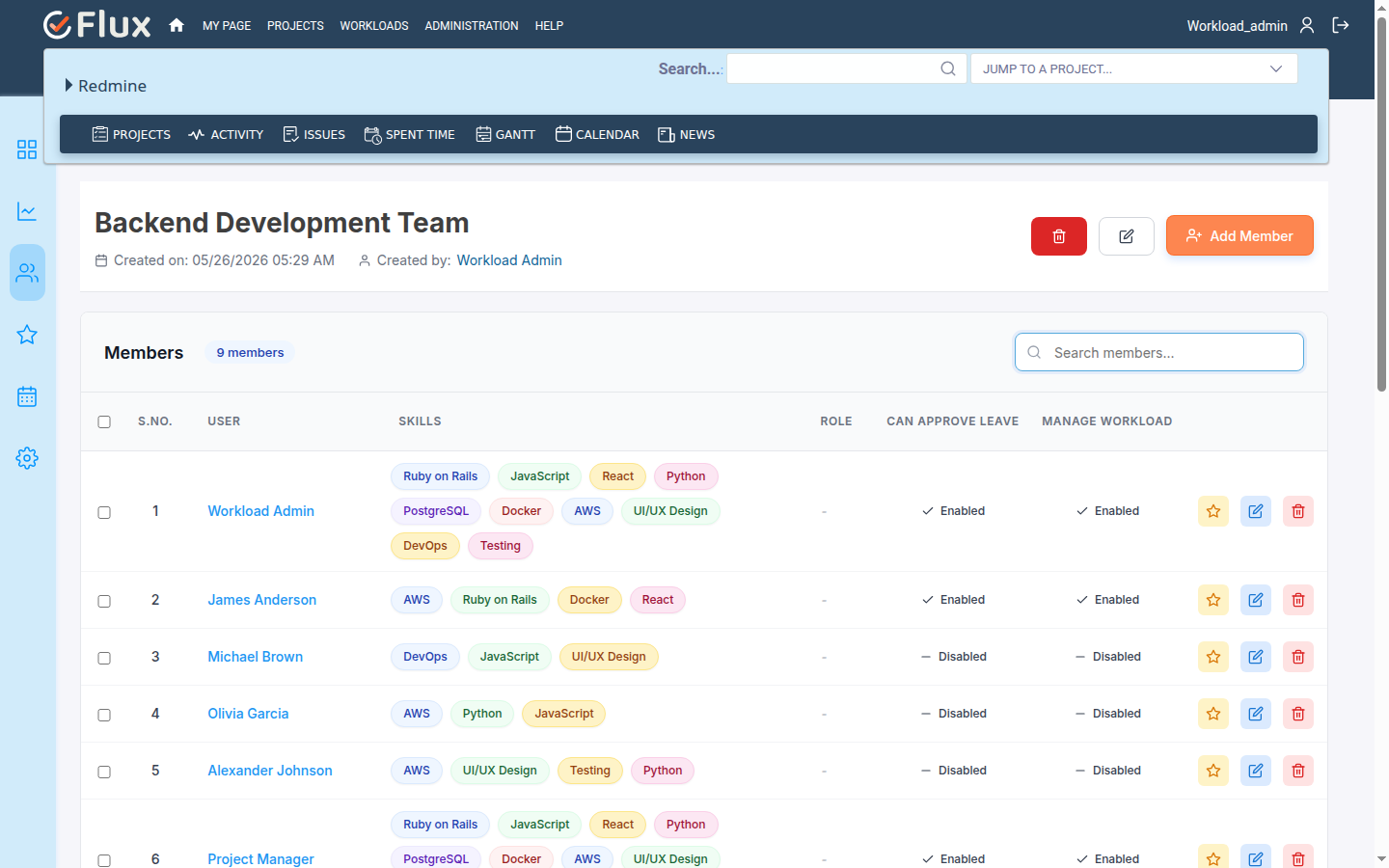
- How to Add Members to a Team
- How to Manage Member Workload Permissions
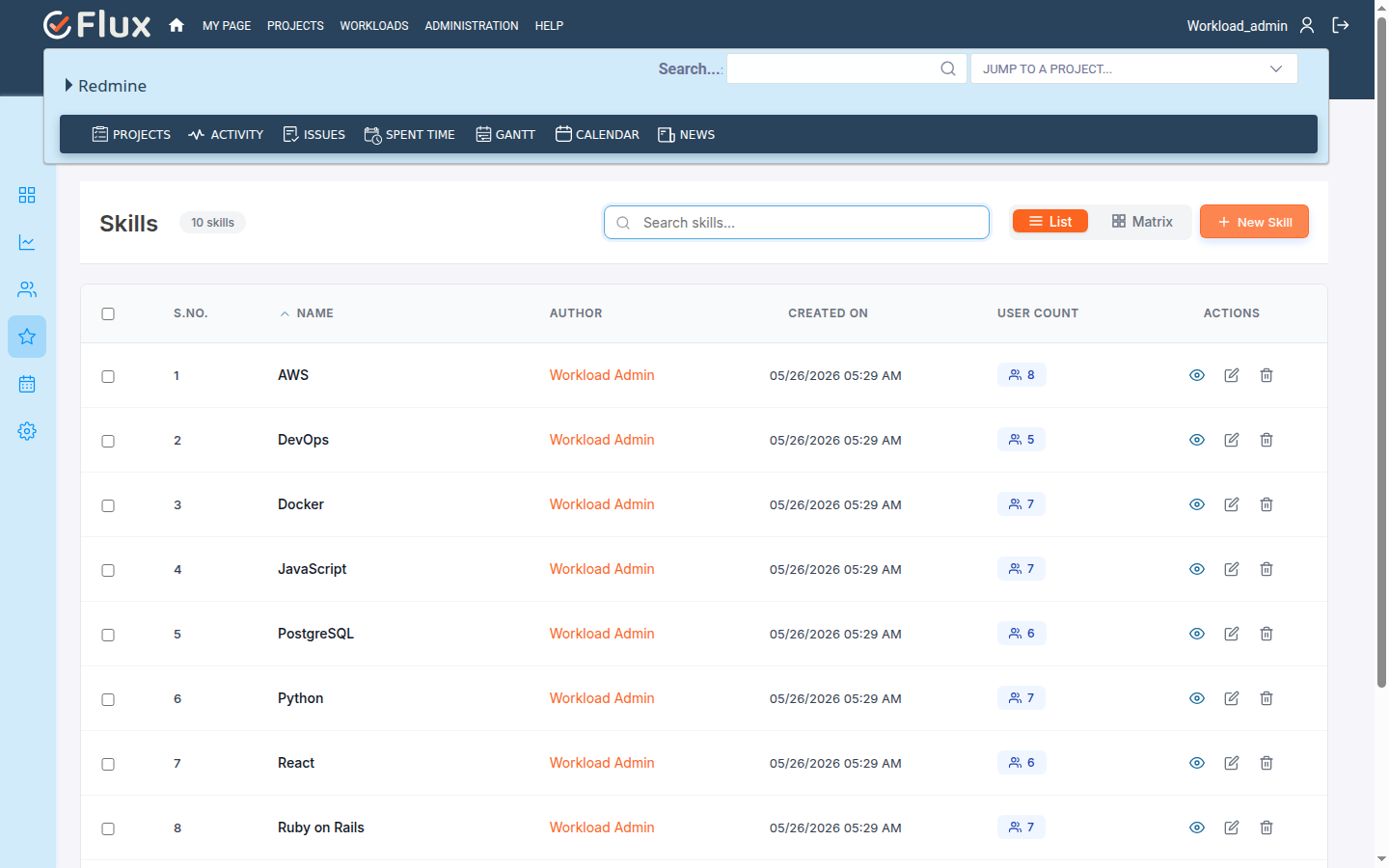
- How to Create a Skill
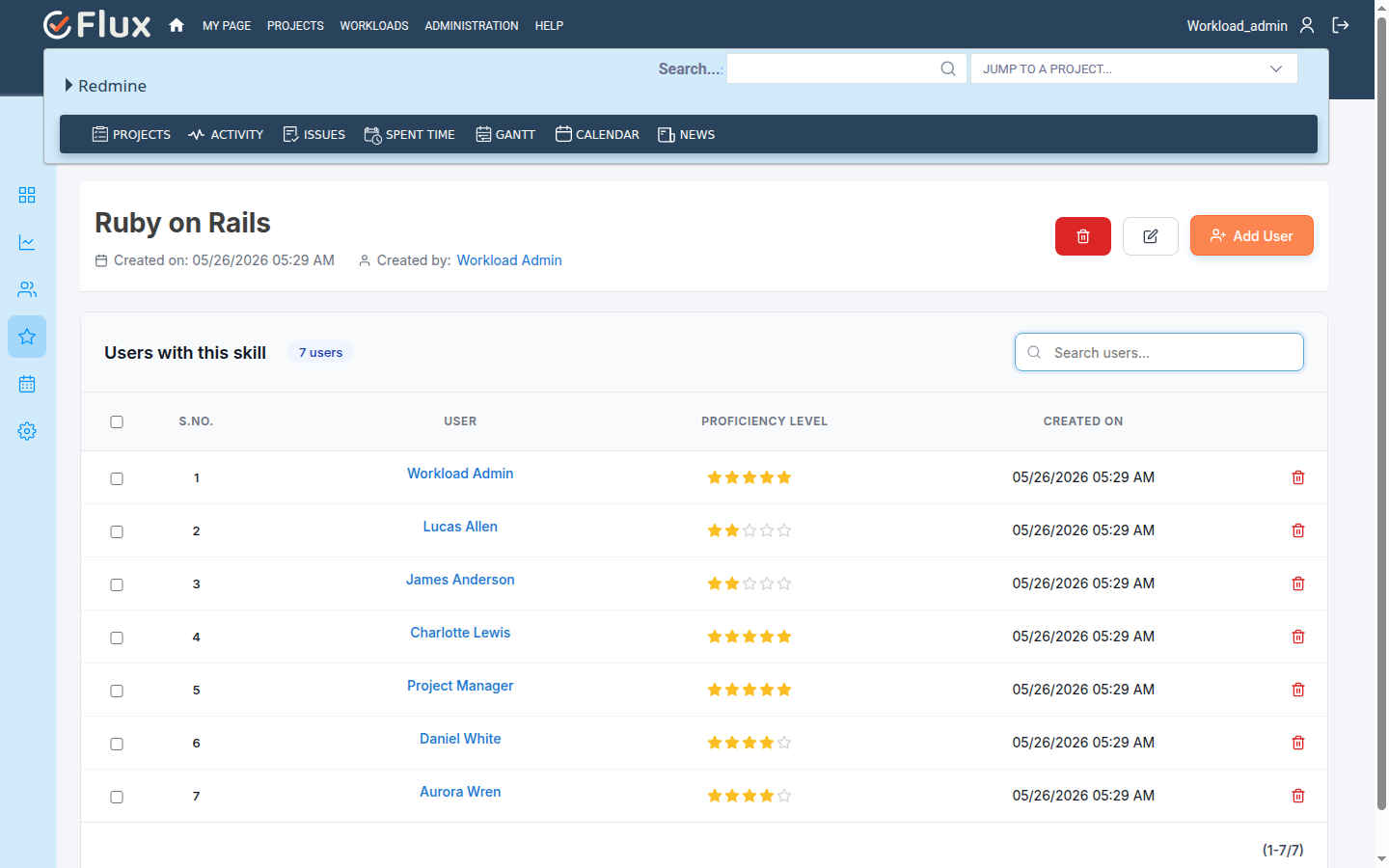
- How to Assign Skills to Users
- How to Find Team Members by Skill
- How to Request Leave
- How to Approve or Reject Leave
- How to Cancel Leave
- How to Create a Holiday Scheme
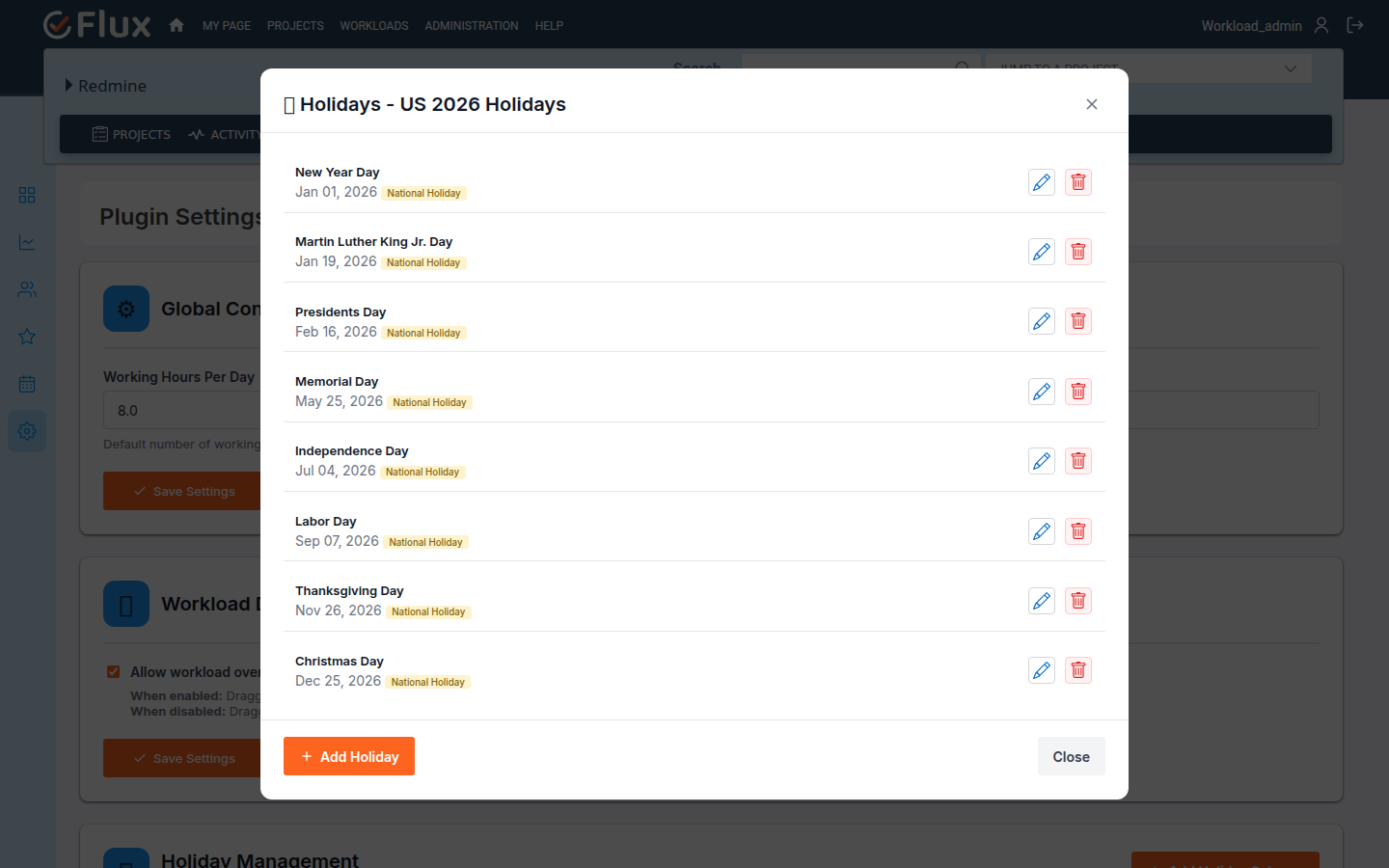
- How to Add Holidays
- How to Generate Recurring Holidays
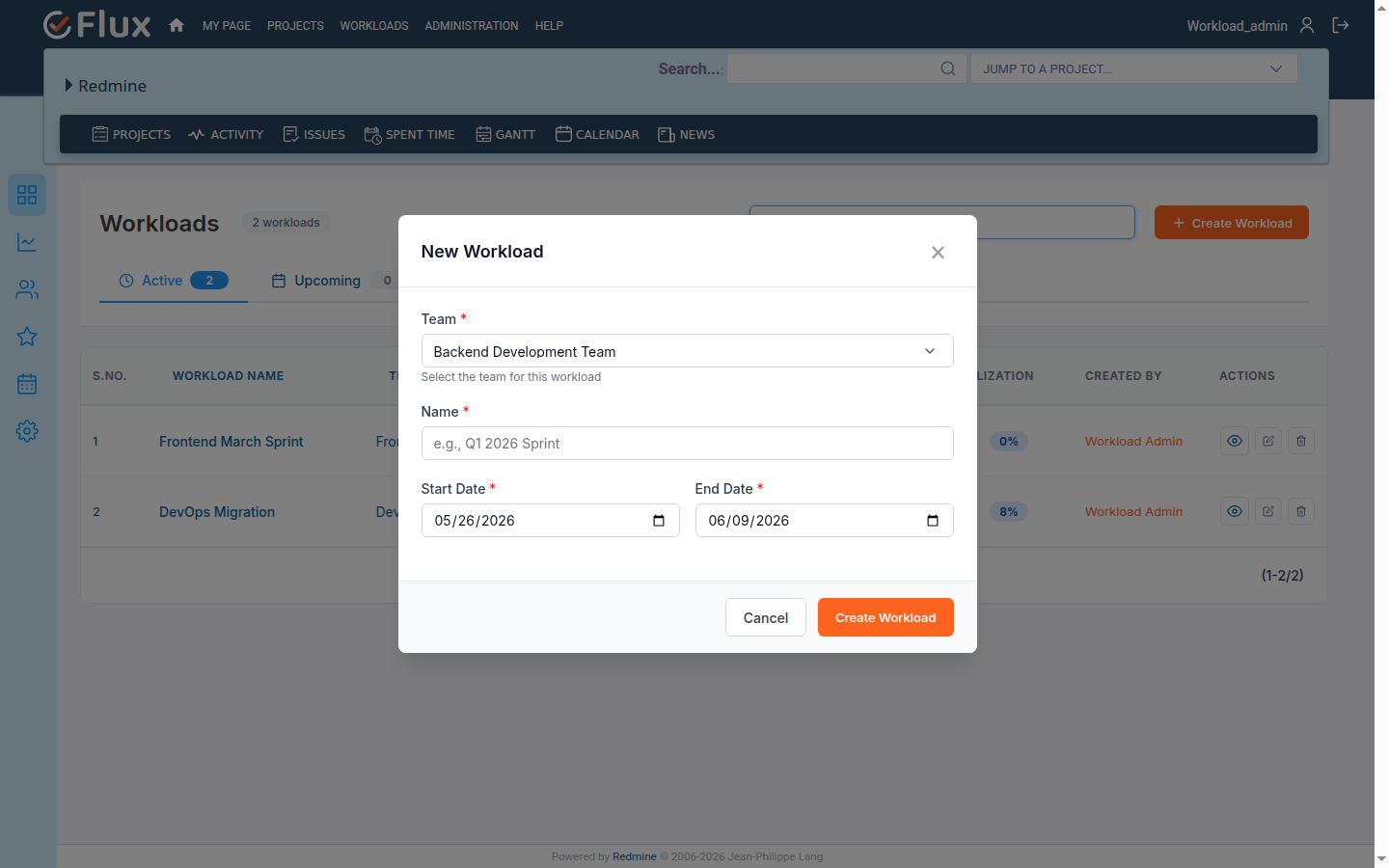
- How to Create a Workload
- How to Edit and Delete a Workload
- How to Add Issues to a Workload
- How to Allocate Planned Hours
- How to Use the Gantt View
- How to Split an Allocation
- How to Recalculate Capacity
- How to Send Workload Email
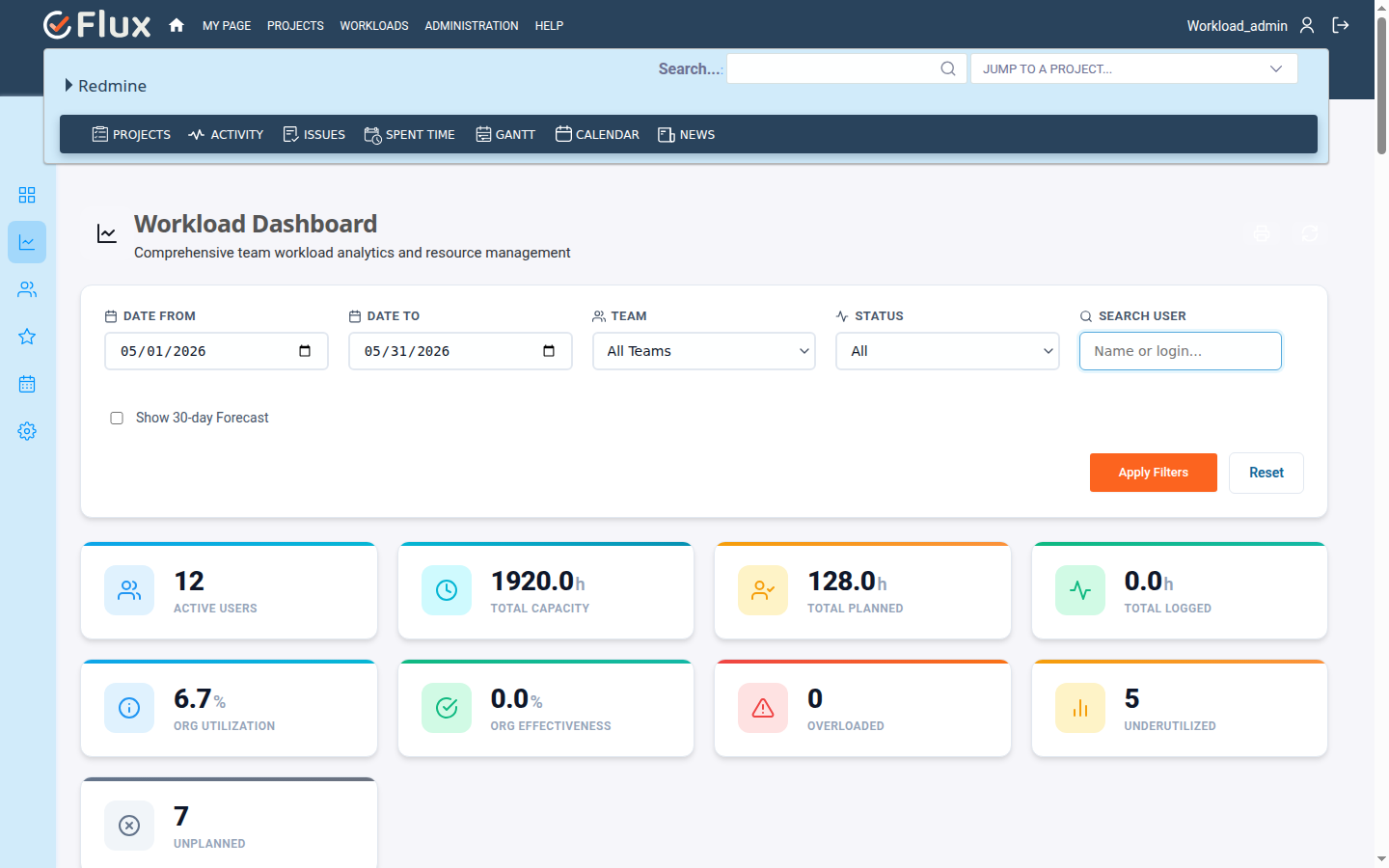
- How to View the Workload Dashboard
- Troubleshooting
- Frequently Asked Questions
- Uninstallation of Plugin
- Conclusion
Introduction #
The Redmineflux Workload Plugin helps teams plan work, track capacity, and identify overload before it affects delivery. It adds a Workloads menu to Redmine and provides tools for managing teams, skills, leave, holidays, issue allocations, and workload analytics.
The plugin calculates availability from working hours, weekends, holidays, and approved leave. Workload managers can assign Redmine issues to team members, distribute planned hours on a timeline, view utilization, detect cross-team conflicts, and use the dashboard to review team capacity, planned work, logged hours, effectiveness, and overload trends.
Version Compatibility #
Redmine Versions:
- 5.0.x
- 6.0.x
- 6.1.x
Installation #
To install the Workload Redmine Plugin, follow these steps:
- Make sure you have a working Redmine installation.
- Upload the
redmineflux_workloadfolder to theRedmine/pluginsdirectory and do not change the folder name. - Run the following command to install dependencies:
bundle install - Run the plugin migration command:
In Production:
RAILS_ENV=production bundle exec rails redmine:plugins:migrateIn Development:RAILS_ENV=development bundle exec rails redmine:plugins:migrate - Restart Redmine:
rails s
After installation, the Workloads item appears in the top menu for logged-in users.
Note:
If you encounter any UI-related issues after installing the plugin, such as missing styles or JavaScript functionality (for example, CSS or JavaScript files not loading properly), run the following command and then restart your Redmine server:
RAILS_ENV=production bundle exec rake assets:precompile
This command regenerates the plugin assets and helps ensure that all CSS and JavaScript files are loaded correctly.
Configuration #
To configure the Workload Plugin, follow these steps:
- Log in with administrator credentials.
- Open the Workloads menu.
- Click the Settings icon in the plugin sidebar.
- Configure the workload options:
- Working Hours Per Day – Defines the standard capacity for one working day. The default value is
8.0. - Allow Workload Overload – Allows planned hours to exceed available capacity when enabled.
- Working Hours Per Day – Defines the standard capacity for one working day. The default value is
- Manage holiday schemes and holidays from the same settings area.
- Click Save to apply the configuration.
The plugin uses the active holiday scheme when calculating capacity. Weekends, holidays, and approved leave reduce available hours.
Roles and Permissions #
The Workload Plugin adds the Manage teams and skills permission in Redmine roles and permissions.
Users with this permission can:
- Create, edit, delete, and bulk delete teams.
- Add, update, and remove team members.
- Assign Redmine roles to team members.
- Grant team members the ability to manage workloads.
- Grant team members the ability to approve leave.
- Create, edit, delete, and bulk delete skills.
- Assign skills and proficiency levels to users.
- Create and manage workloads for teams where they have workload access.
Administrators can also:
- View the Workload Dashboard.
- Manage plugin settings.
- Manage holiday schemes and holidays.
- View and manage all teams and workloads.
Users without management permission can still access workload information that applies to their teams, and they can view or manage their own leave requests based on the available actions.
How to #
How to Enable and View the Workload Plugin #
To access the Workload Plugin:
- Log in to Redmine.
- Click Workloads in the top menu.
- Use the plugin sidebar to open:
- Workloads
- Dashboard (administrators only)
- Teams
- Skills
- Leaves
- Settings (administrators only)
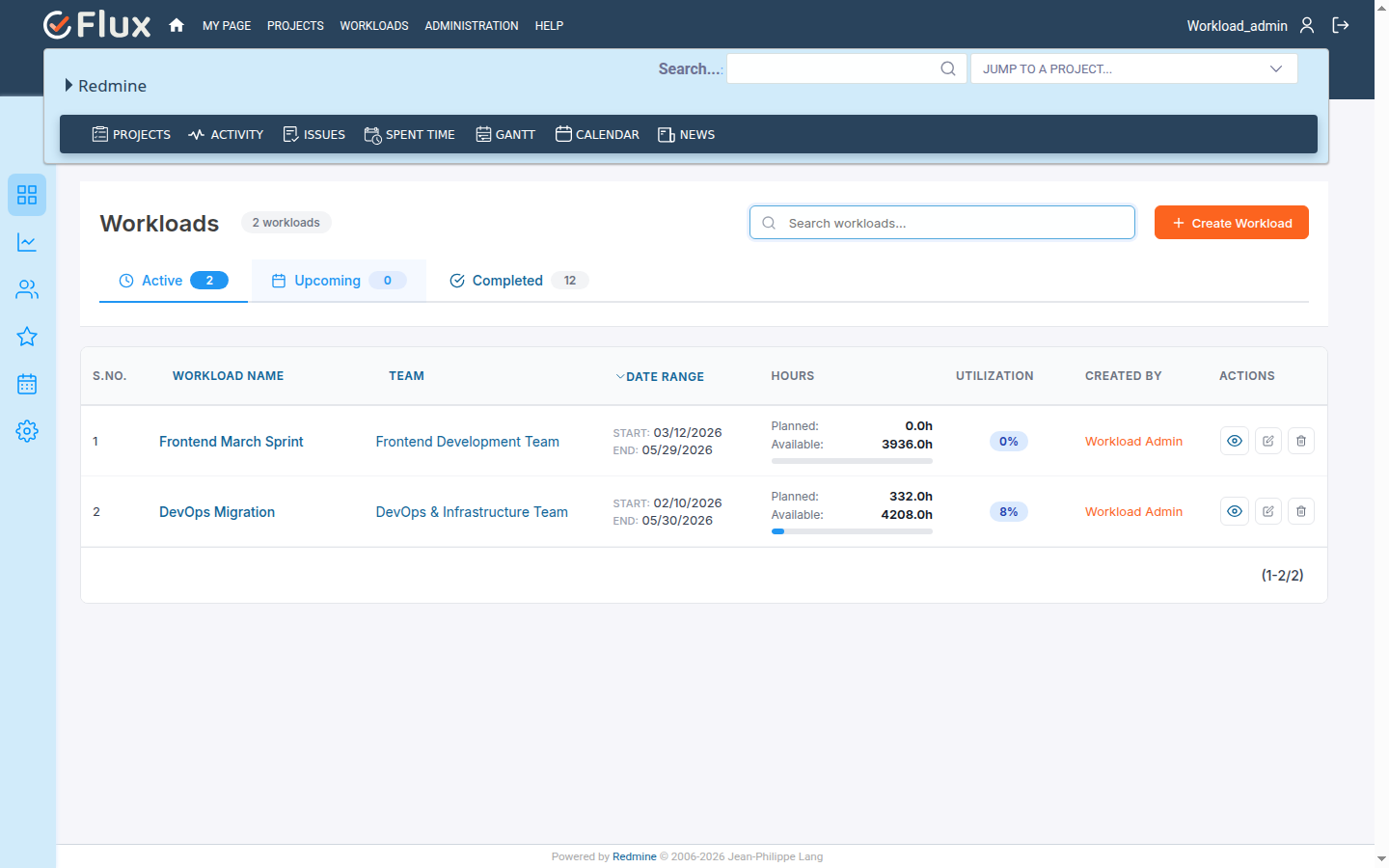
The global Workloads page displays active, upcoming, and completed workloads. Non-admin users see workloads for teams where they are members.
How to Configure Workload Settings #
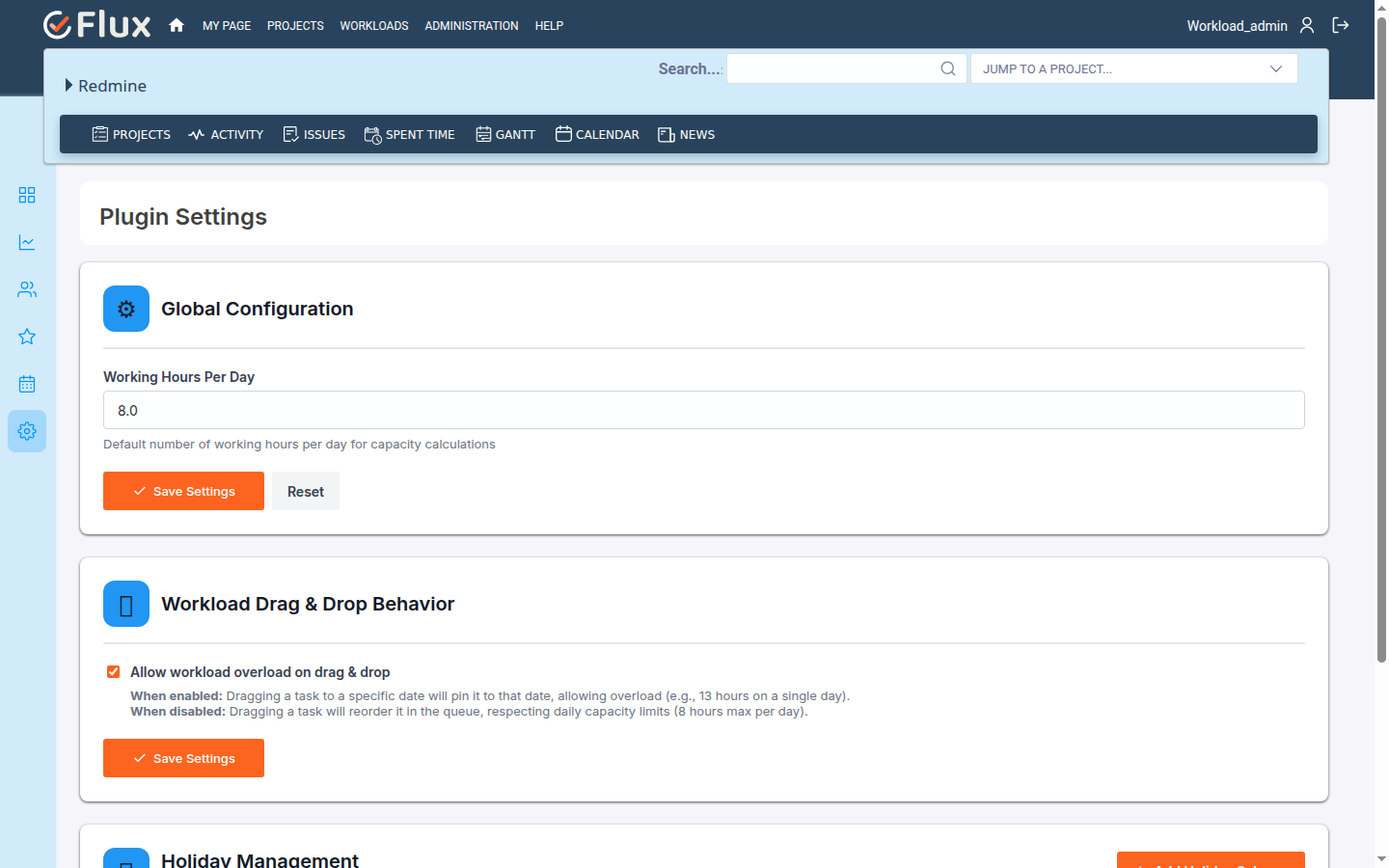
To configure capacity and overload behavior:
- Open Workloads.
- Click the Settings icon in the plugin sidebar.
- Set Working Hours Per Day.
- Enable or disable Allow Workload Overload.
- Click Save.
These settings affect capacity calculations in team availability, workload details, allocation timelines, and dashboard metrics.
How to Create a Team #
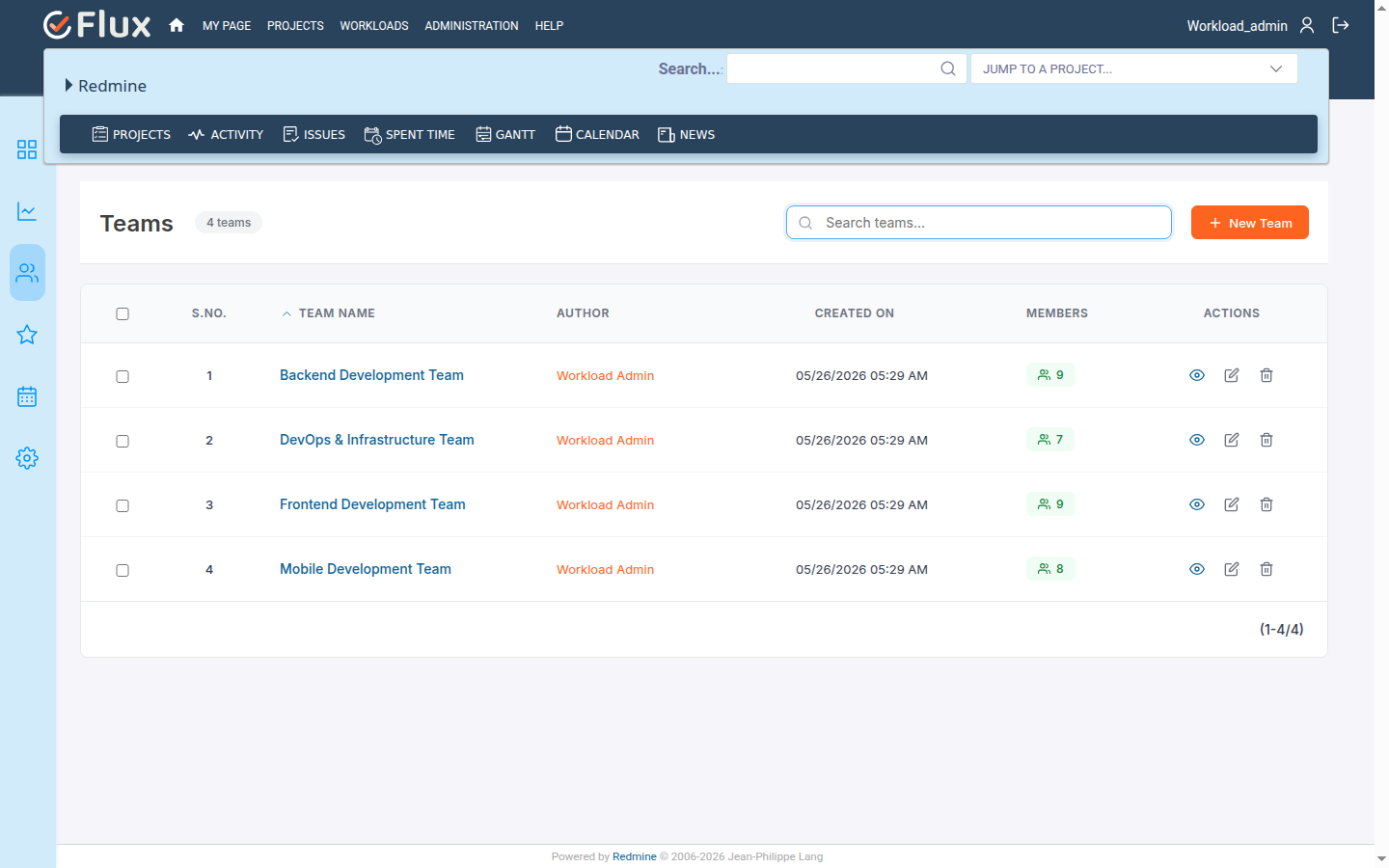
To create a team:
- Open Workloads.
- Click the Teams icon in the plugin sidebar.
- Click New Team.
- Enter the team name.
- Add an optional description.
- Click Create.
The team appears in the Teams list and can be used when creating workloads.
How to Edit and Delete a Team #
To edit a team:
- Open Teams.
- Find the team in the list.
- Click the edit icon.
- Update the team details.
- Click Save.
To delete a team:
- Open Teams.
- Select the delete icon for a team, or select multiple teams for bulk deletion.
- Confirm the deletion.
Deleting a team removes its related team data. Review associated workloads before deleting a team.
How to Add Members to a Team #
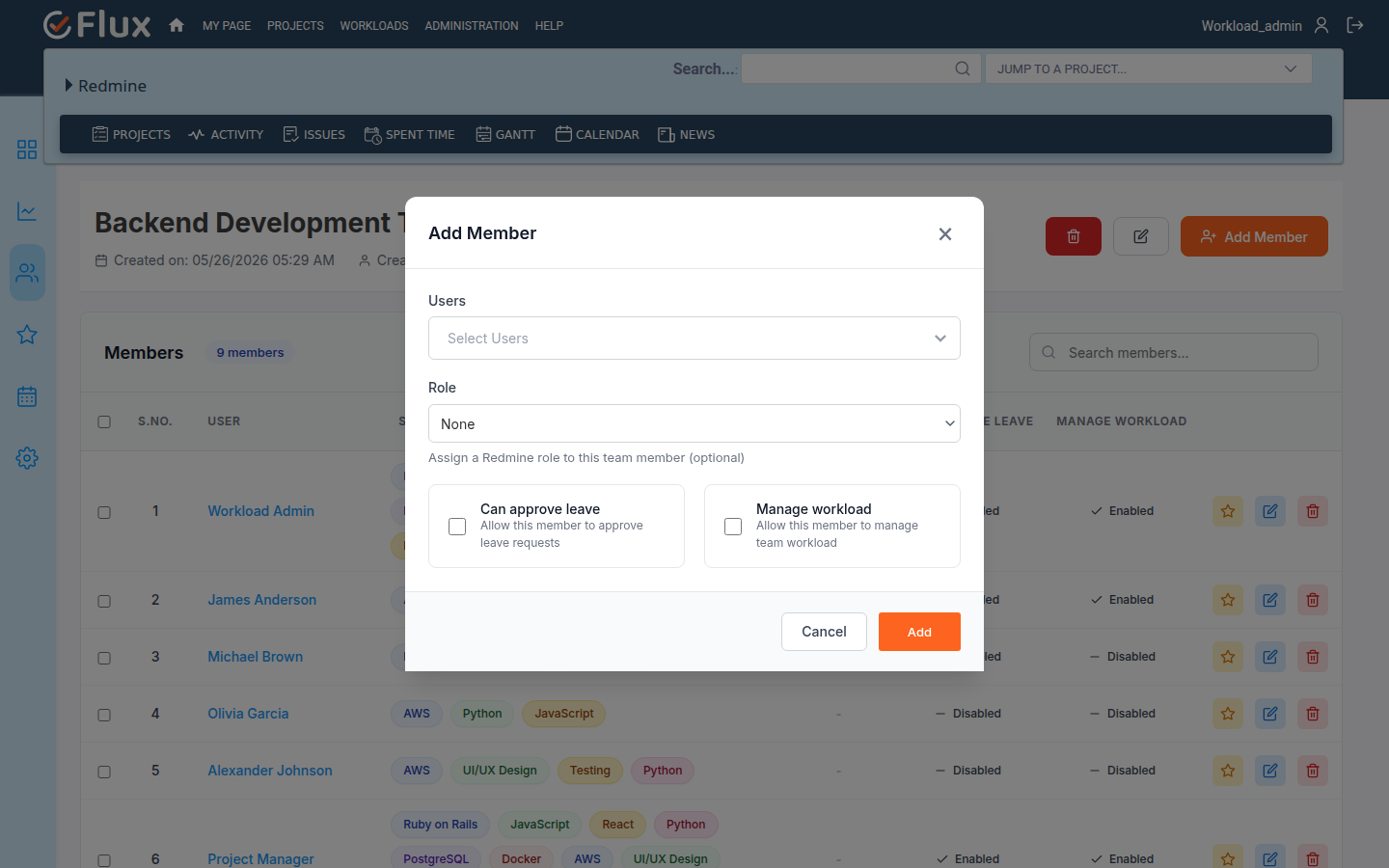
To add members:
- Open Teams.
- Click the team name.
- In the Members section, choose one or more users.
- Select the Redmine role for the members.
- Click Add Member.
Each user can be added only once to the same team. A user can belong to multiple teams.
How to Manage Member Workload Permissions #
To manage team member permissions:
- Open Teams.
- Click the team name.
- Find the member in the Members list.
- Update the available permission fields:
- Manage workload – Allows the member to create and manage workloads for the team.
- Can approve leave – Allows the member to approve or reject leave requests for team members.
- Save the changes.
These permissions are team-specific. A user may manage workloads for one team without managing workloads for another team.
How to Create a Skill #
To create a skill:
- Open Workloads.
- Click the Skills icon in the plugin sidebar.
- Click New Skill.
- Enter the skill name.
- Click Create.
Skills can be used to classify users and find suitable team members during planning.
How to Assign Skills to Users #
To assign users to a skill:
- Open Skills.
- Click the skill name.
- Click Add User to Skill.
- Select one or more users.
- Choose the proficiency level.
- Click Add User.
Proficiency levels help identify experience depth for each skill. Existing user skills can be updated or removed from the skill detail page.
How to Find Team Members by Skill #
To find members by skill:
- Open Skills.
- Use the Find Team Members by Skill section.
- Select a skill or search by skill name.
- Apply any available filters.
- Review the matching users and their proficiency levels.
This helps workload managers identify the right people before assigning issue work.
How to Request Leave #
To request leave:
- Open Workloads.
- Click the Leaves icon in the plugin sidebar.
- Click Request Leave.
- Select the leave type.
- Enter the start date and end date.
- Add the reason.
- Submit the request.
The request is added to My Leaves with pending status unless it is auto-approved by an administrator or approver action.
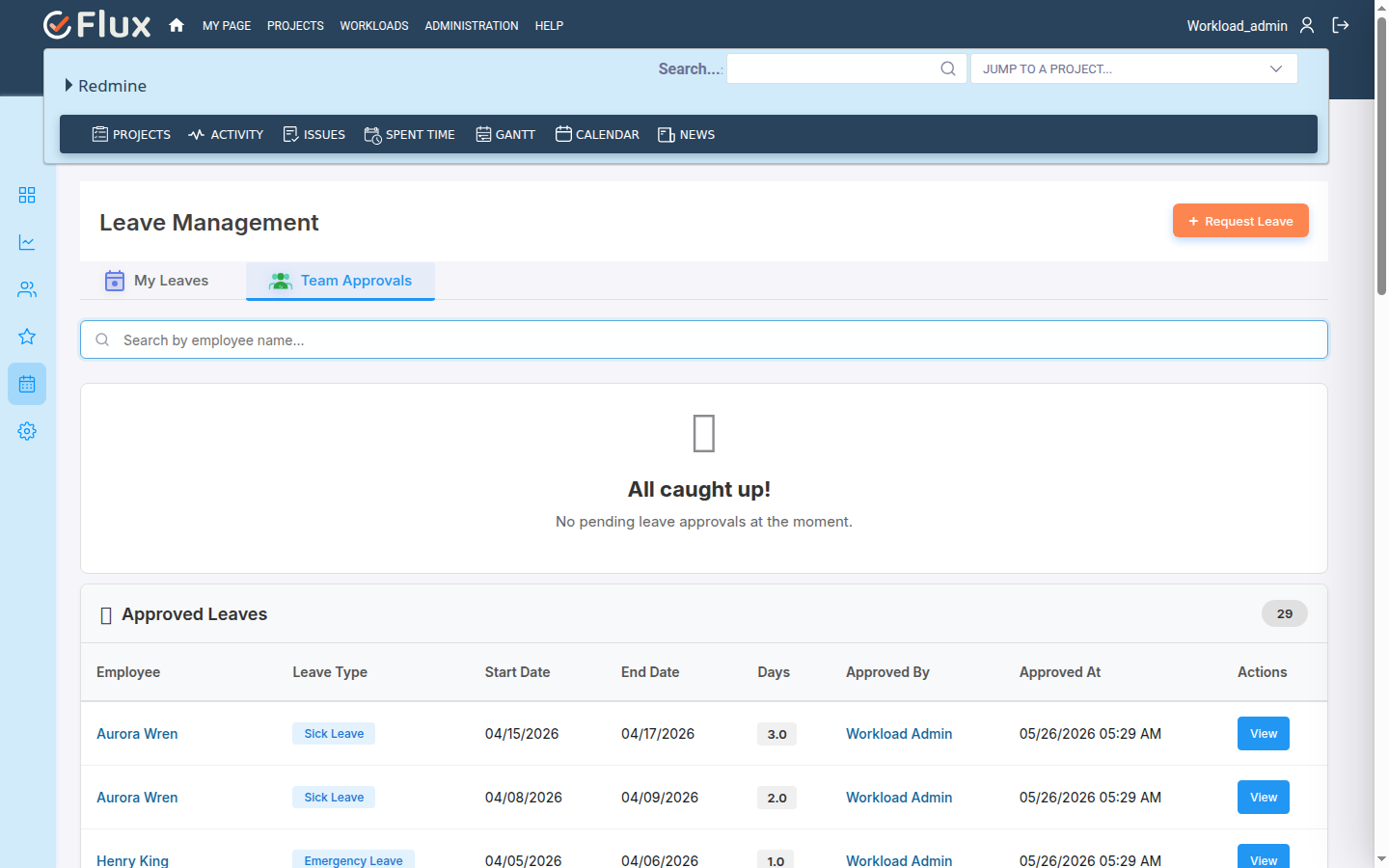
How to Approve or Reject Leave #
Approvers can approve or reject leave for members of teams where they have Can approve leave enabled. Administrators can approve or reject leave globally.
To approve leave:
- Open Leaves.
- Review the approval queue.
- Open the pending leave request.
- Click Approve.
- Add notes if required.
- Confirm the action.
To reject leave:
- Open Leaves.
- Review the approval queue.
- Open the pending leave request.
- Click Reject.
- Enter the rejection reason.
- Confirm the action.
Approved leave reduces the user’s available workload capacity during the leave dates.
How to Cancel Leave #
To cancel a leave request:
- Open Leaves.
- Find the request under My Leaves.
- Click Cancel.
- Confirm the cancellation.
Cancelled leave no longer reduces capacity.
How to Create a Holiday Scheme #
Holiday schemes define the holiday calendar used for capacity calculations.
To create a holiday scheme:
- Open Workloads.
- Click Settings.
- Go to the holiday schemes area.
- Click New Holiday Scheme.
- Enter the scheme name and optional description.
- Enable Active if this scheme should be used for capacity calculations.
- Click Create.
Only one holiday scheme should be active for capacity calculations. Activating a new scheme deactivates the previous active scheme.
How to Add Holidays #
To add a holiday:
- Open Settings.
- Select the holiday scheme.
- Click Add Holiday.
- Enter the holiday name.
- Select the start date.
- Add an end date for a multi-day holiday if required.
- Select the holiday type.
- Add an optional description.
- Enable recurring if the holiday repeats every year.
- Click Add Holiday.
Holidays are excluded from capacity calculations when they belong to the active holiday scheme.
How to Generate Recurring Holidays #
To generate recurring holidays for a year:
- Open Settings.
- Go to the Holidays section.
- Select the target year.
- Click Generate Recurring Holidays.
The plugin creates holiday entries for recurring holidays in the selected year.
How to Create a Workload #
To create a workload:
- Open Workloads.
- Click Create Workload.
- Select the team.
- Enter the workload name.
- Select the start date and end date.
- Select team members for the workload.
- Enter working hours per day if the workload needs a custom value.
- Click Create.
The workload appears in the global Workloads list and in the selected team’s workload list.
How to Edit and Delete a Workload #
To edit a workload:
- Open Workloads.
- Find the workload.
- Click the edit icon.
- Update the workload name, dates, team, members, or working hours.
- Click Save.
To delete a workload:
- Open Workloads.
- Find the workload.
- Click the delete icon.
- Confirm the deletion.
Deleting a workload removes its workload users, issue links, and allocation data.
How to Add Issues to a Workload #
To add Redmine issues to a workload:
- Open Workloads.
- Click the workload name.
- Use the issue search or eligible issues list.
- Select the issue to add.
- Click Add Issue.
Issues can be removed from the workload when they are no longer part of the plan.
How to Allocate Planned Hours #
To allocate planned hours:
- Open the workload detail page.
- Review each workload user and their capacity.
- Add issues to the workload.
- Enter or update planned hours for each issue assignment.
- Review utilization, remaining capacity, and overbooked hours.
The plugin compares planned hours with available capacity. If overload is not allowed, planned hours must stay within available capacity.
How to Use the Gantt View #
The workload detail page includes a Gantt timeline for issue allocations.
Use the Gantt view to:
- See issue allocations across the workload date range.
- Drag allocations to adjust timing.
- Resize allocations to change duration.
- Reorder allocations for a user.
- Review daily allocation distribution.
- Identify overlapping workload conflicts.
Capacity, approved leave, holidays, and weekends are considered when reviewing timeline availability.
How to Split an Allocation #
To split an allocation:
- Open the workload detail page.
- Find the issue allocation on the Gantt timeline.
- Use the split action for the allocation.
- Choose the split point or split details.
- Save the change.
Splitting is useful when work on an issue is interrupted or must be scheduled in separate date ranges.
How to Recalculate Capacity #
To recalculate workload capacity:
- Open the workload detail page.
- Click Recalculate Capacity.
- Review the updated capacity and utilization values.
Use recalculation after changing working hours, workload dates, team membership, holidays, or leave records.
How to Send Workload Email #
To send workload information by email:
- Open the workload detail page.
- Click the workload email action.
- Review the workload, team, issue, and allocation information.
- Send the email.
The email includes workload details and allocation information for the selected workload.
How to View the Workload Dashboard #
The Workload Dashboard is available to administrators.
To view the dashboard:
- Open Workloads.
- Click the Dashboard icon in the plugin sidebar.
- Select the date range.
- Filter by team, workload, user, or status.
- Enable forecast if required.
- Review the dashboard sections:
- KPI summary
- Capacity and planned work trends
- Team capacity distribution
- Workload matrix
- User availability heatmap
- Cross-workload conflicts
- Forecast data
- Allocation drilldown
Use the dashboard to identify overloaded users, underutilized users, unplanned capacity, and teams that need workload balancing.
Troubleshooting #
Workloads menu is not visible #
Make sure the user is logged in. The Workloads top menu item is visible only to logged-in users.
Teams or Skills pages show access denied #
Verify that the user’s Redmine role has the Manage teams and skills permission enabled under Administration > Roles and permissions.
A user cannot create or edit a workload #
Check that the user is either an administrator or a member of the target team with Manage workload enabled.
Leave approval actions are not visible #
Check that the user is an administrator or has Can approve leave enabled in the relevant team membership.
Capacity numbers look incorrect #
Review these settings and records:
- Working hours per day.
- Workload start and end dates.
- Active holiday scheme.
- Holidays in the selected date range.
- Approved leave in the selected date range.
- Team membership and workload users.
Then run Recalculate Capacity from the workload detail page.
Holidays are not reducing capacity #
Confirm that the holiday belongs to the active holiday scheme. Holidays in inactive schemes are not used for capacity calculations.
Dashboard data does not match expected results #
Check the dashboard filters first. Date range, team, workload, status, and user search filters all change the displayed metrics.
Frequently Asked Questions #
Q1. Can one user belong to multiple teams?
Yes. A user can be a member of multiple teams, but can be added only once to the same team.
Q2. Can permissions differ by team?
Yes. Manage workload and Can approve leave are stored on team membership, so a user can have different permissions in different teams.
Q3. Are weekends included in workload capacity?
No. Weekends are excluded from capacity calculations.
Q4. Do holidays affect every team?
The active holiday scheme is used by the plugin for capacity calculations. Holidays in that active scheme reduce available capacity.
Q5. Does approved leave reduce capacity?
Yes. Approved leave reduces the user’s available capacity for the leave dates.
Q6. Can planned work exceed capacity?
This depends on the Allow Workload Overload setting. If overload is disabled, planned hours should stay within available capacity.
Q7. Who can see the Workload Dashboard?
The dashboard is available to administrators.
Uninstallation of Plugin #
To uninstall the Workload Plugin:
- Back up your Redmine database and files.
- Roll back the plugin migrations:
RAILS_ENV=production bundle exec rails redmine:plugins:migrate NAME=redmineflux_workload VERSION=0 - Remove the plugin folder from
Redmine/plugins:rm -rf plugins/redmineflux_workload - Restart Redmine.
Uninstalling the plugin removes workload plugin tables and data. Always take a backup before uninstalling.
Conclusion #
The Redmineflux Workload Plugin gives Redmine teams a structured way to manage team capacity, member skills, leave, holidays, issue allocation, and workload analytics. By keeping workload plans connected to real availability, the plugin helps managers balance assignments, reduce overload, and make better scheduling decisions.


