
- Introduction
- Version Compatibility
- Installation
- Configuration
- Invoice Overview
- How to Enable Invoice Module in a Project
- How to Configure Project Billing Settings
- How to Set Team Rates (Per-User Rates)
- How to Create a Customer
- How to Edit or Deactivate a Customer
- How to Create an Invoice
- How to Edit an Invoice
- How to Add Tax or Discount to an Invoice
- How to Send an Invoice
- How to Record a Payment
- How to Use Online Payments (Stripe)
- How to Use the Global Invoice View
- How to Use the Invoice Dashboard
- How to Use the Billing Report
- How to Manage PDF Templates
- How to Manage Email Templates
- Invoice Status Reference
- Permissions
- Troubleshooting
- Frequently Asked Questions
- Uninstallation
- Conclusion
Introduction #
Redmineflux Invoice is a complete billing and invoicing plugin for Redmine that enables teams to generate invoices from time entries, manage customers, configure billing rules, and track payment status without relying on external tools.
The plugin connects time tracking (Spent Time) with billing workflows, allowing accurate invoice generation, better financial visibility, and streamlined project-based billing.
Main capabilities include:
- Invoice CRUD with full lifecycle management (Draft → Sent → Paid → Cancelled)
- Auto-generate invoices from time entries within a date range
- Per-user team rates with fallback to project billing rate
- Global customer database with project linking
- Manual and online payment recording (Stripe)
- PDF generation with customisable HTML/ERB templates
- Email templates with dynamic macro substitution
- Billing dashboard with KPI summary
- Cross-project global invoice view
Version Compatibility #
Supported Redmine versions:
- 5.0.x
- 5.1.x
- 6.0.x
Installation #
To install the Redmineflux Invoice plugin:
- Make sure Redmine is already installed and working.
- Copy the plugin folder into your Redmine plugins directory.
cp -R redmineflux_invoice /path/to/redmine/plugins/ - Install required gems.
cd /path/to/redmine
bundle install - Run database migrations.
For production:RAILS_ENV=production bundle exec rails redmine:plugins:migrate
For development:RAILS_ENV=development bundle exec rails redmine:plugins:migrate - Restart Redmine.
bundle exec rails server
After installation, navigate to Administration > Plugins. The Redmineflux Invoice plugin should appear in the list.
Note:
If you encounter any UI-related issues after installing the plugin, such as missing styles or JavaScript functionality (for example, CSS or JavaScript files not loading properly), run the following command and then restart your Redmine server:
RAILS_ENV=production bundle exec rake assets:precompile
This command regenerates the plugin assets and helps ensure that all CSS and JavaScript files are loaded correctly.
Configuration #
To configure the plugin:
- Go to Administration.
- Open Plugins.
- Find Redmineflux Invoice.
- Click Configure.
From plugin configuration, administrators can manage:
- Company information used on all invoices (name, address, logo, email, phone, tax IDs)
- Invoice settings (prefix, currency, default payment terms)
- PDF templates (default and custom HTML/ERB templates)
- Email templates (subject, body, footer with macro support)
- Payment gateway credentials (Stripe)
Company Information #
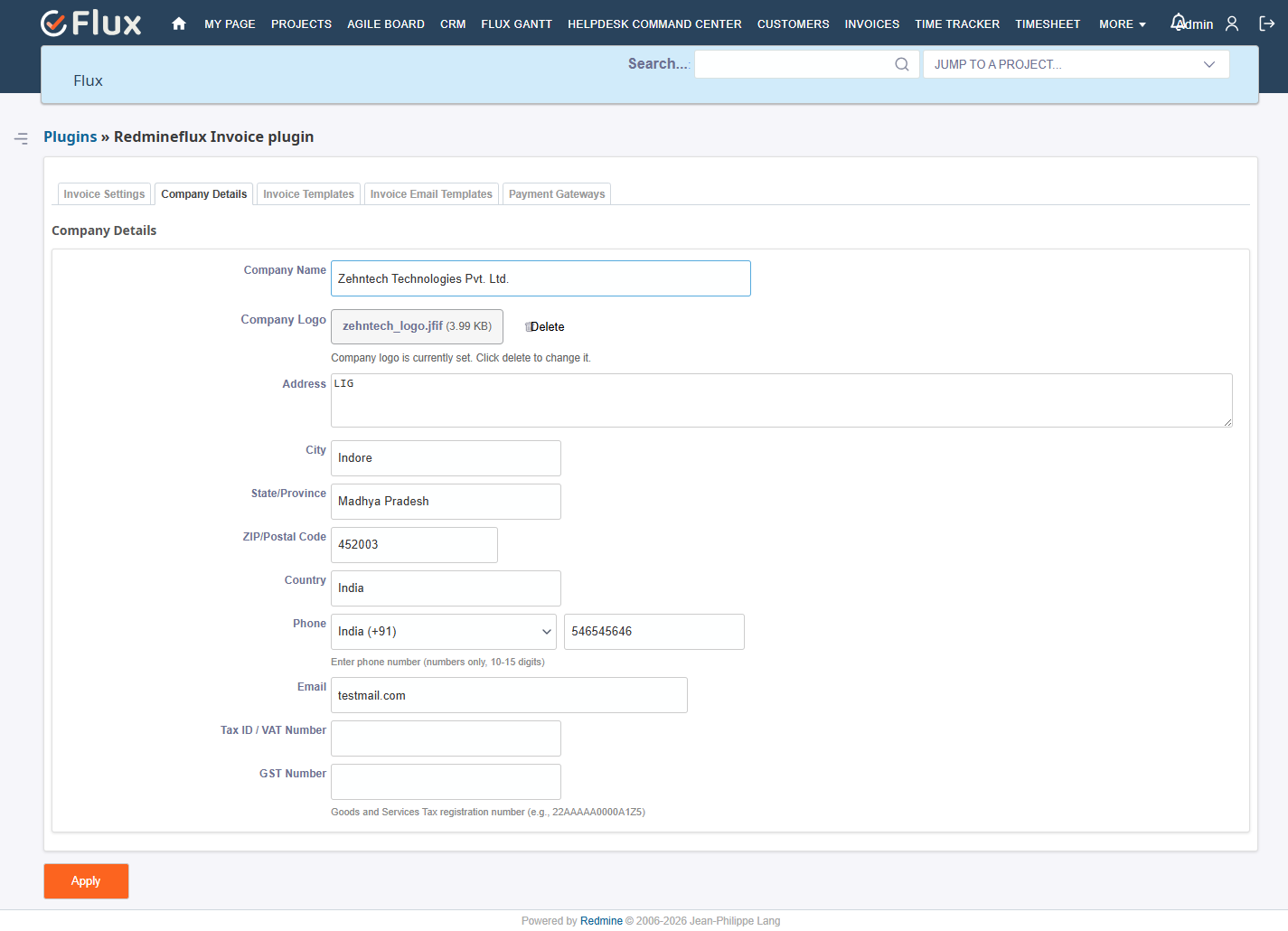
Enter your organisation details in the Company Information section:
- Company name — appears on every invoice
- Full address (street, city, state, zip, country)
- Company logo — uploaded image shown in the invoice header
- Billing email and phone number
- Tax ID and GST number if applicable
Invoice Settings #
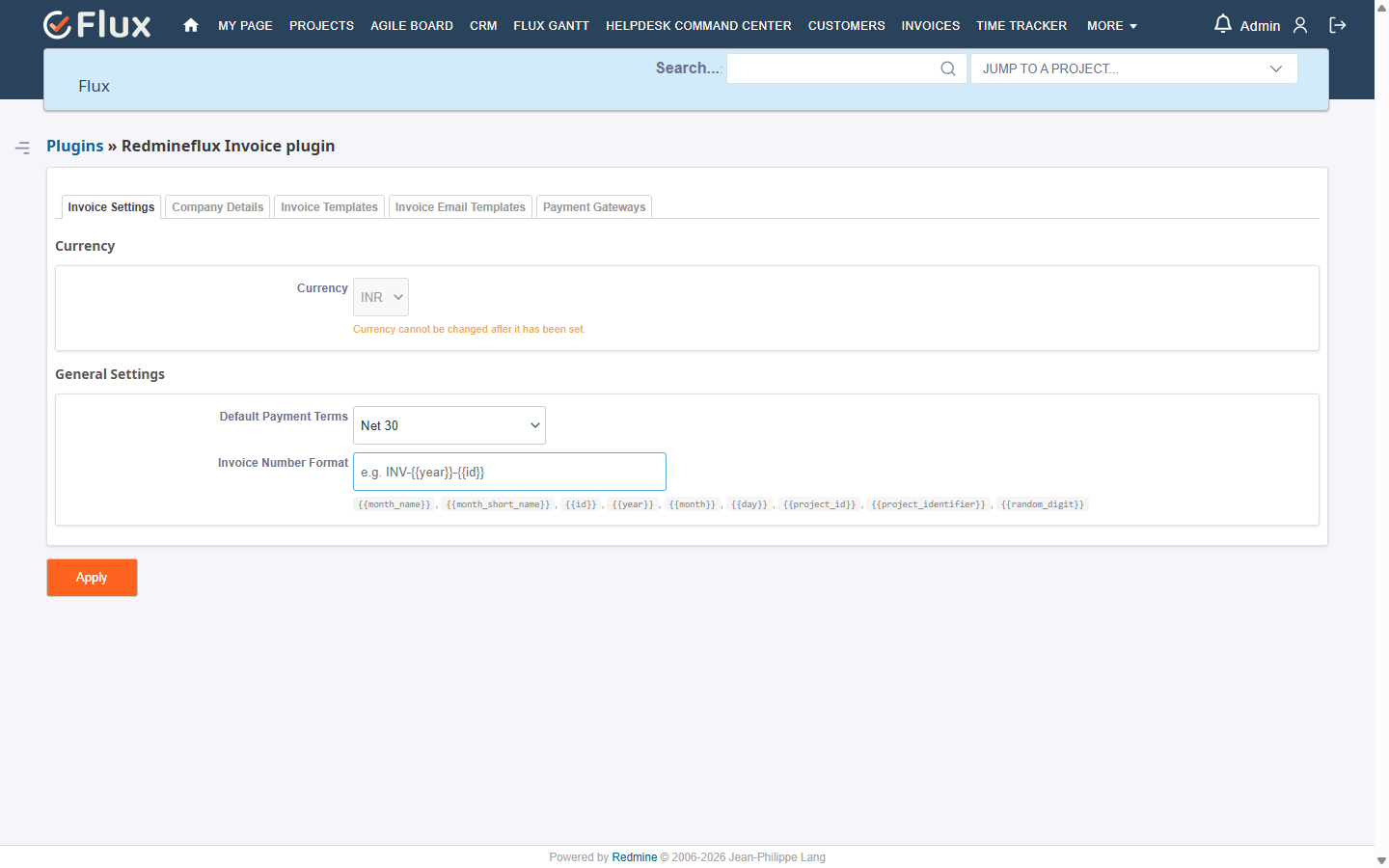
Configure global invoice behaviour:
- Invoice prefix — default is
INV, used to generate numbers likeINV-2026-0001 - Currency — the symbol displayed on all invoices
- Default payment terms — default is
Net 30
Invoice PDF Templates #
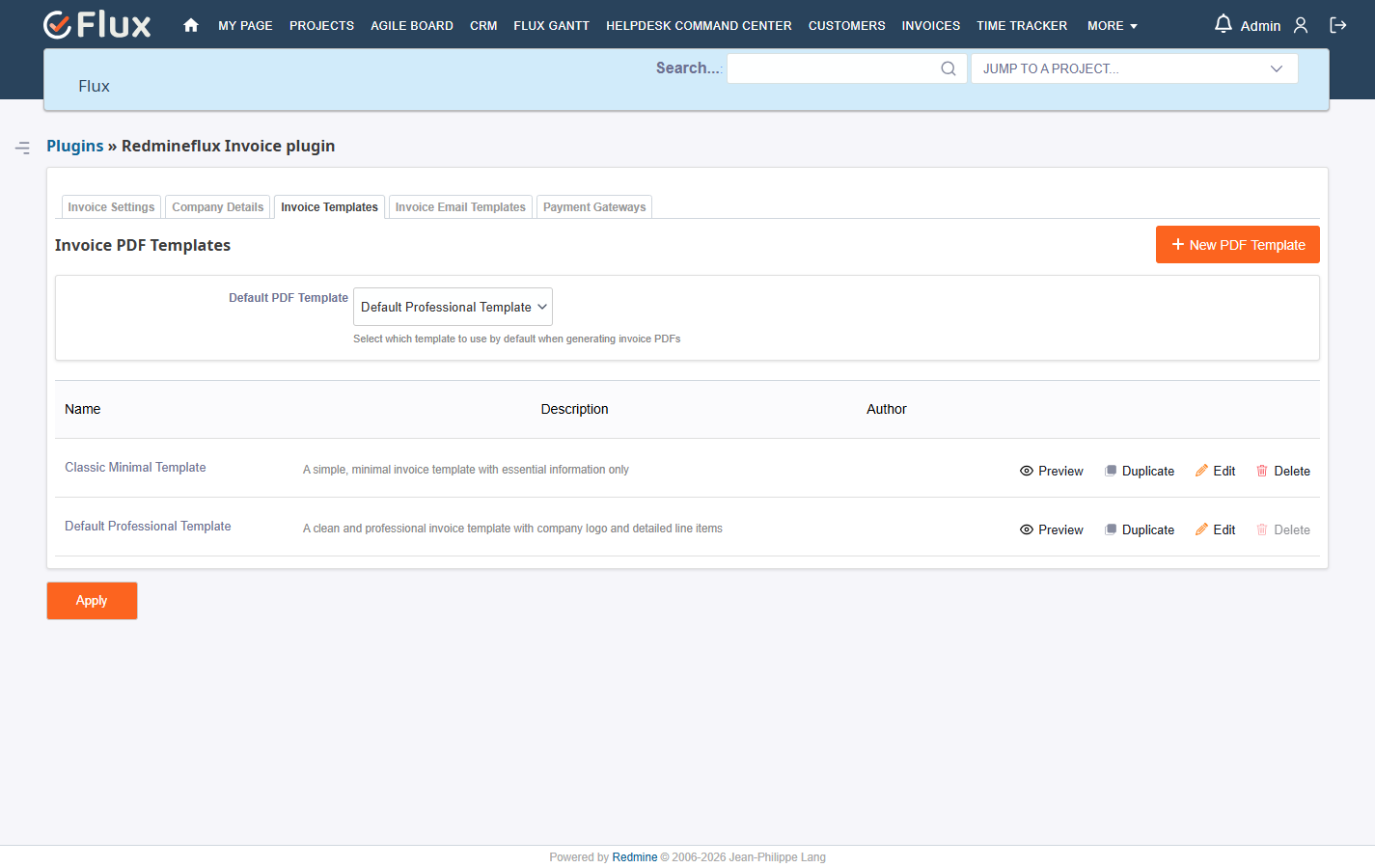
The plugin ships with a default PDF template. You can create additional custom templates using HTML/ERB with macro substitution.
Supported macros: {{id}}, {{year}}, {{month}}, {{project_identifier}}, {{random_digit}}
Invoice Email Templates #
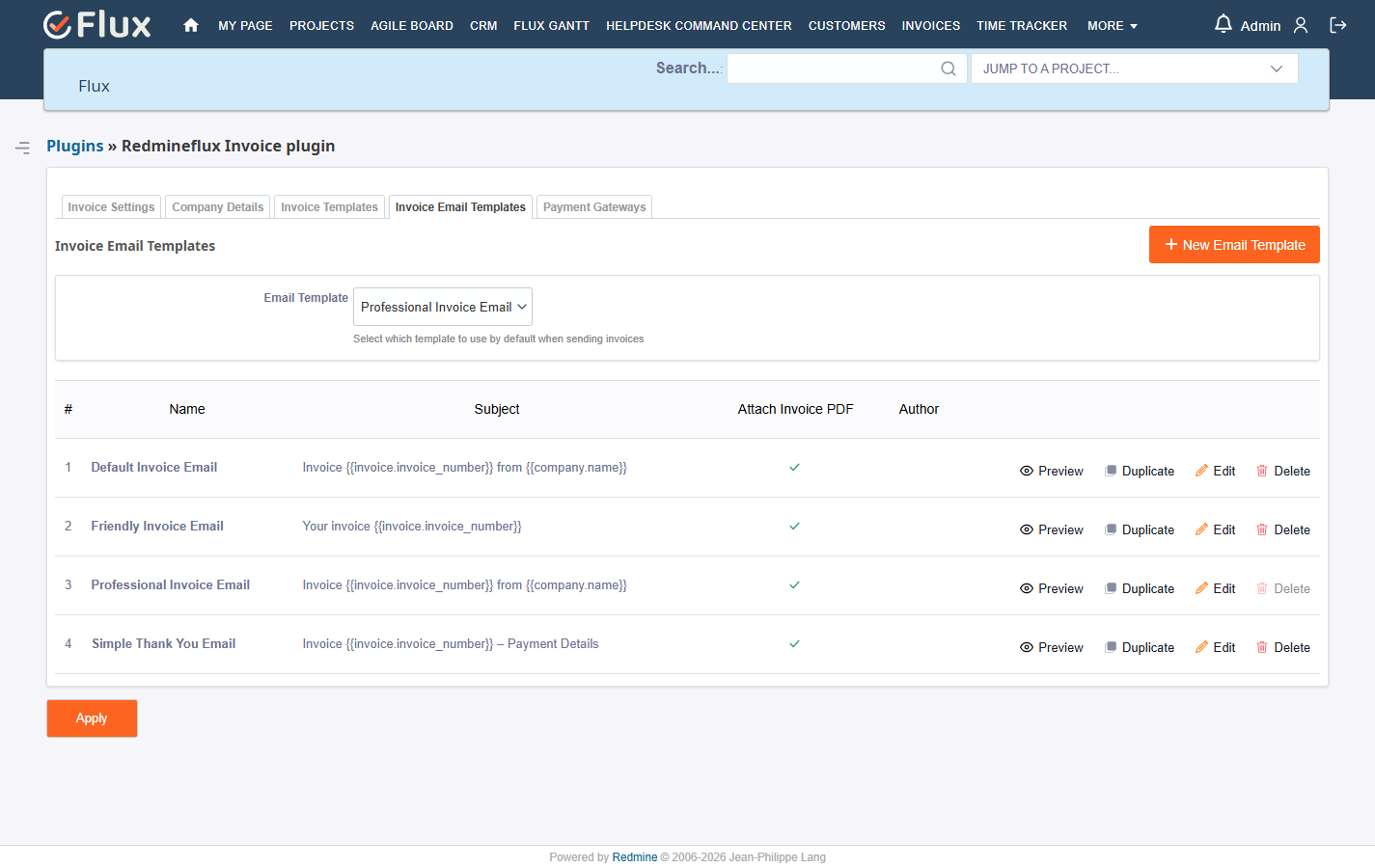
Email templates define the content sent to customers when an invoice is emailed.
You can:
- Use the default template or create new ones
- Customise subject, body, and footer
- Use dynamic placeholders for client name, invoice number, and due date
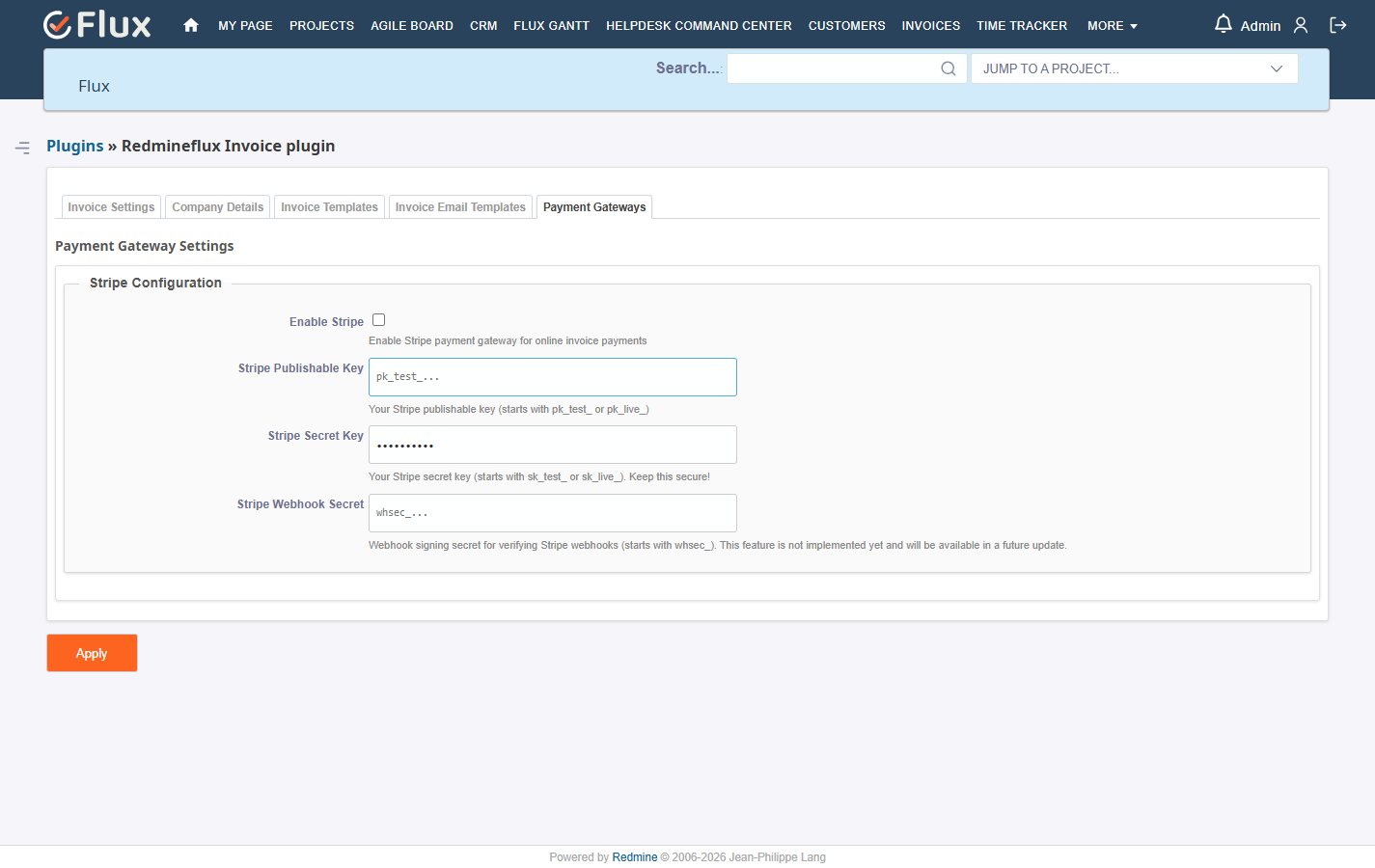
Payment Gateway #
To enable Stripe:
- Open plugin configuration.
- Enable Stripe.
- Enter your Publishable Key, Secret Key, and Webhook Secret from the Stripe dashboard.
- Save.
Invoice Overview #
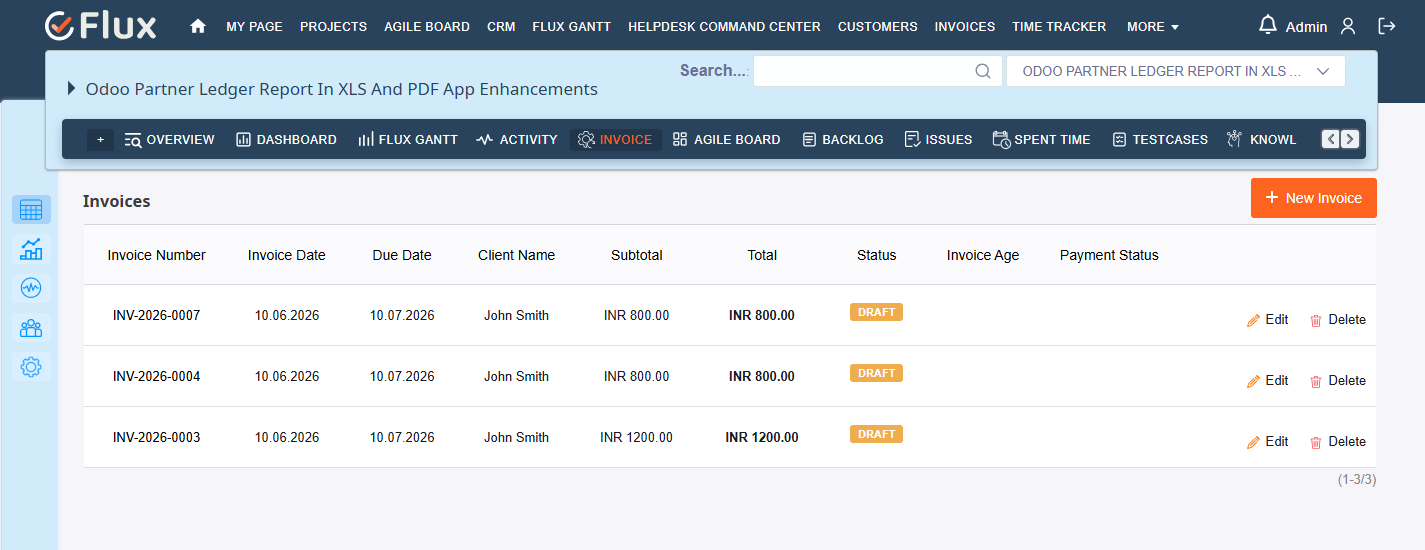
The invoice plugin provides three main working areas:
- Project Invoice Tab Use this to manage invoices for a single project.
- Global Invoice View Use this to view and manage invoices across all projects you have access to.
- Billing Report Use this to preview billable hours before generating an invoice.
How to Enable Invoice Module in a Project #
- Open the project.
- Go to Settings.
- Open the Modules tab.
- Enable Invoice.
- Save the changes.
After enabling the module, the project shows an Invoice tab in the project menu.
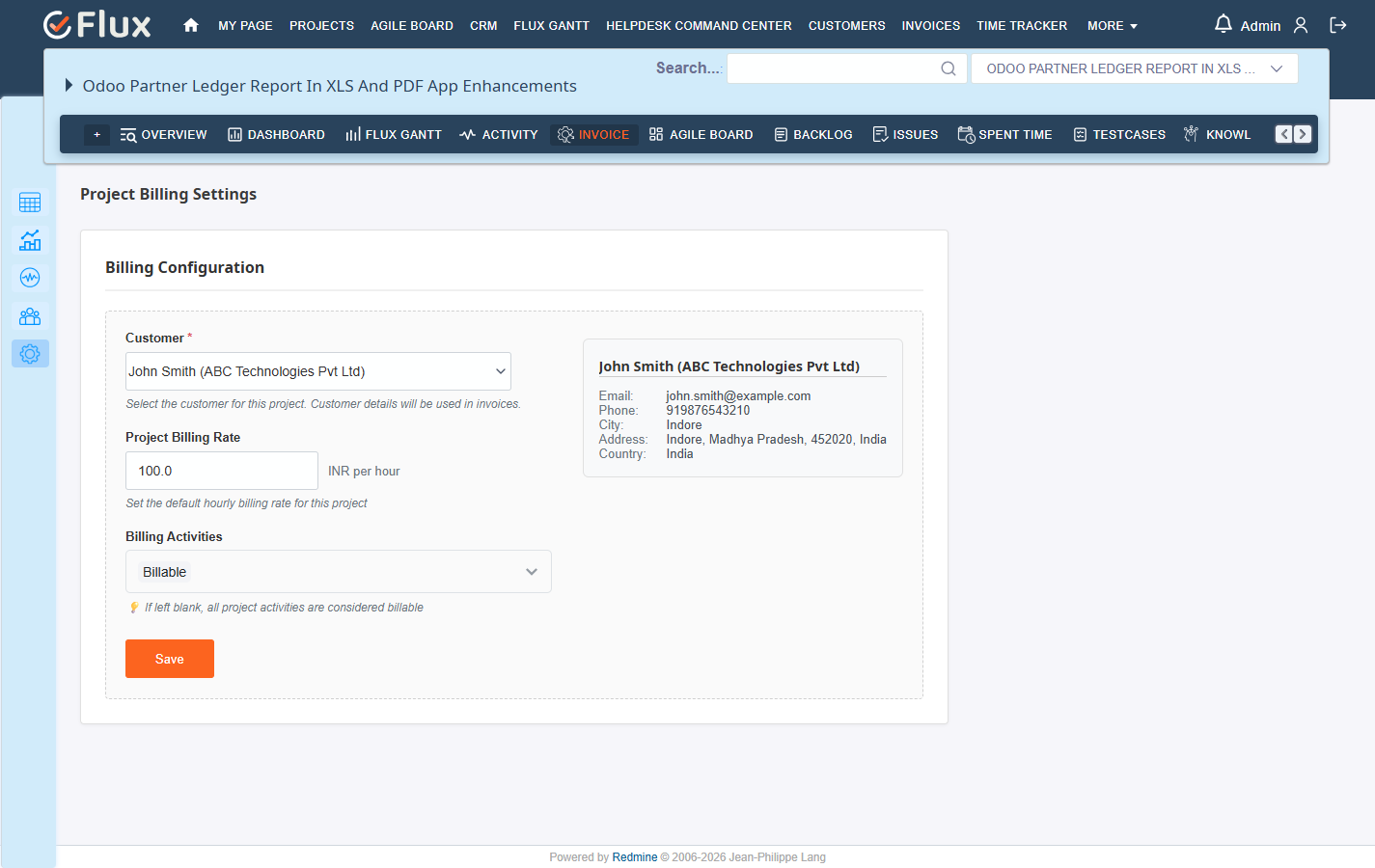
How to Configure Project Billing Settings #
- Open the project.
- Click the Invoice tab.
- Open Settings.
- Set the following:
- Customer — the billing customer linked to this project
- Project Hourly Rate — default rate when no user-specific rate is set
- Billing Activities — time entry activity types to include in billing
- Save.
How to Set Team Rates (Per-User Rates) #
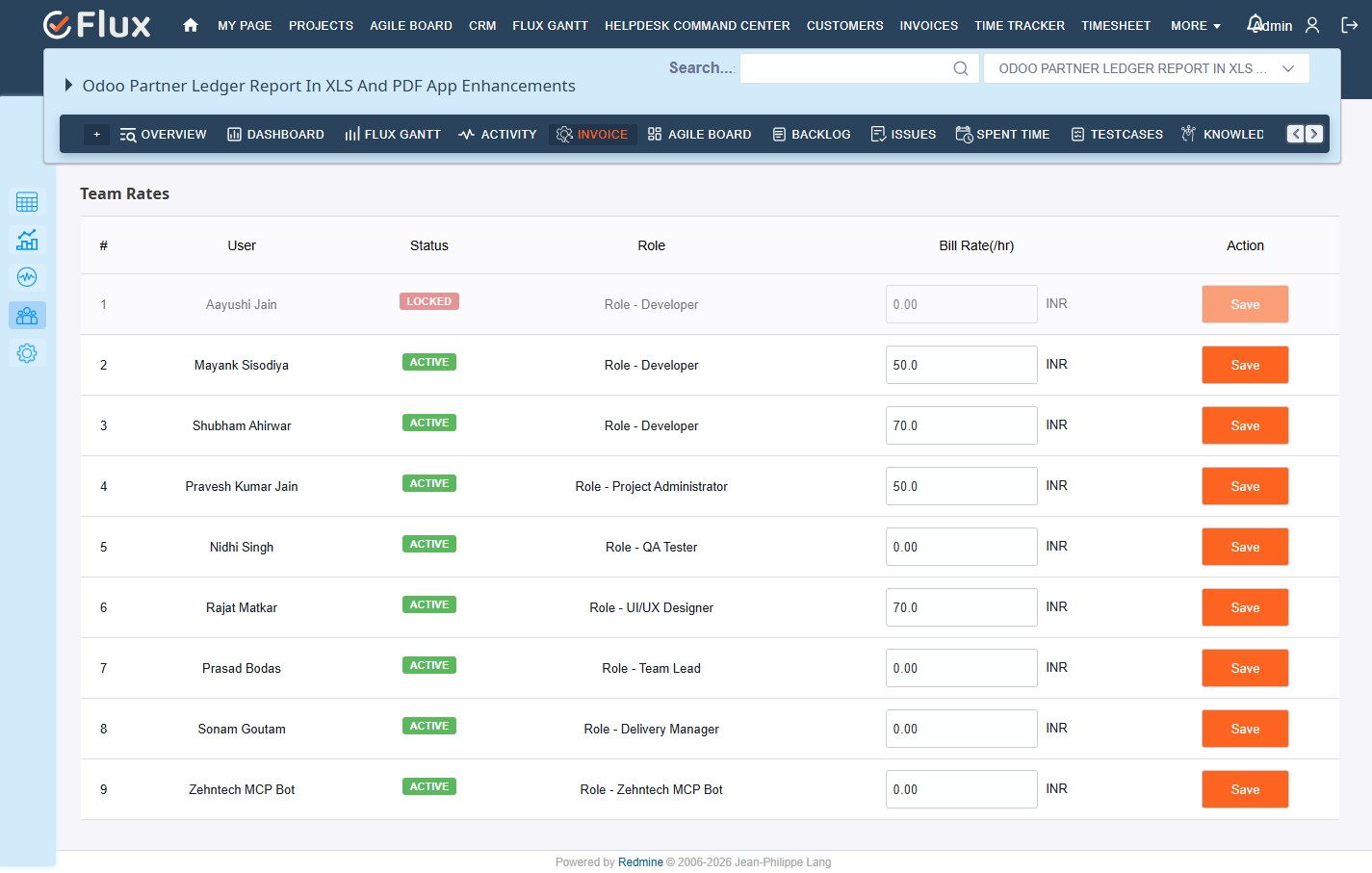
Team rates let you assign individual hourly rates per user per project.
To add or edit a rate:
- Open the project.
- Click Team Rates from the Invoice tab menu.
- Add or edit the rate for each team member.
- Save.
To update all rates at once:
- Open Team Rates.
- Click Bulk Update.
- Enter the new rates.
- Save.
Rate fallback order:
- User team rate is used if set
- Project billing rate is used if no user rate exists
- If neither is set, the line item rate defaults to zero and must be edited manually
How to Create a Customer #
- Go to the Customer tab in the top navigation menu.
- Click New Customer.
- Enter the customer details:
- Name, Company, Email, Phone
- Address, Tax ID
- Save.
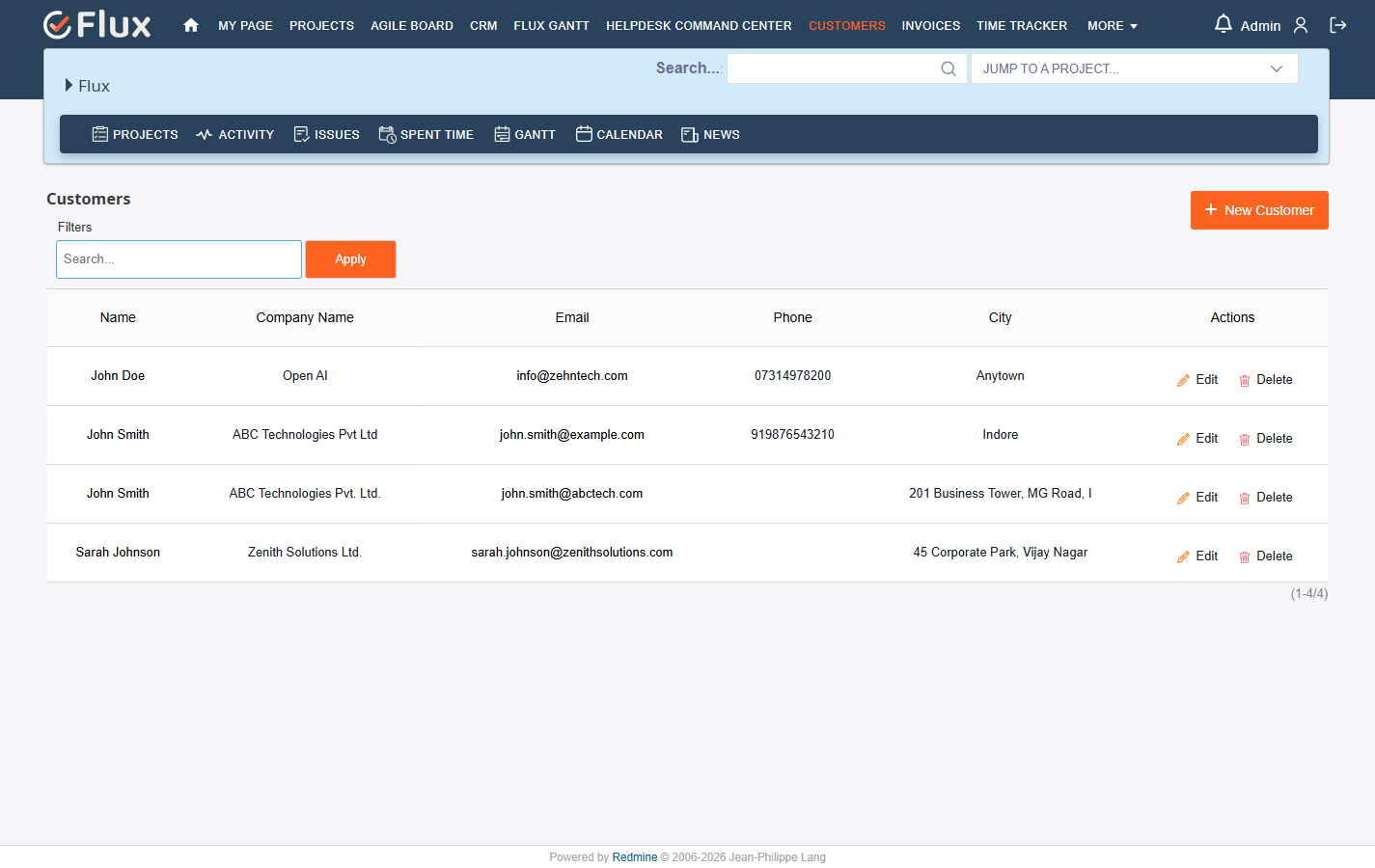
Note: Customers linked to a project cannot be deleted. Unlink the customer from all projects first before deleting.
How to Edit or Deactivate a Customer #
To edit:
- Open the Customer tab.
- Select the customer.
- Click Edit.
- Update the details.
- Save.
To deactivate a customer without deleting:
- Open the customer record.
- Click Edit.
- Set the status to Inactive.
- Save.
How to Create an Invoice #
You can create an invoice manually or auto-generate one from time entries.
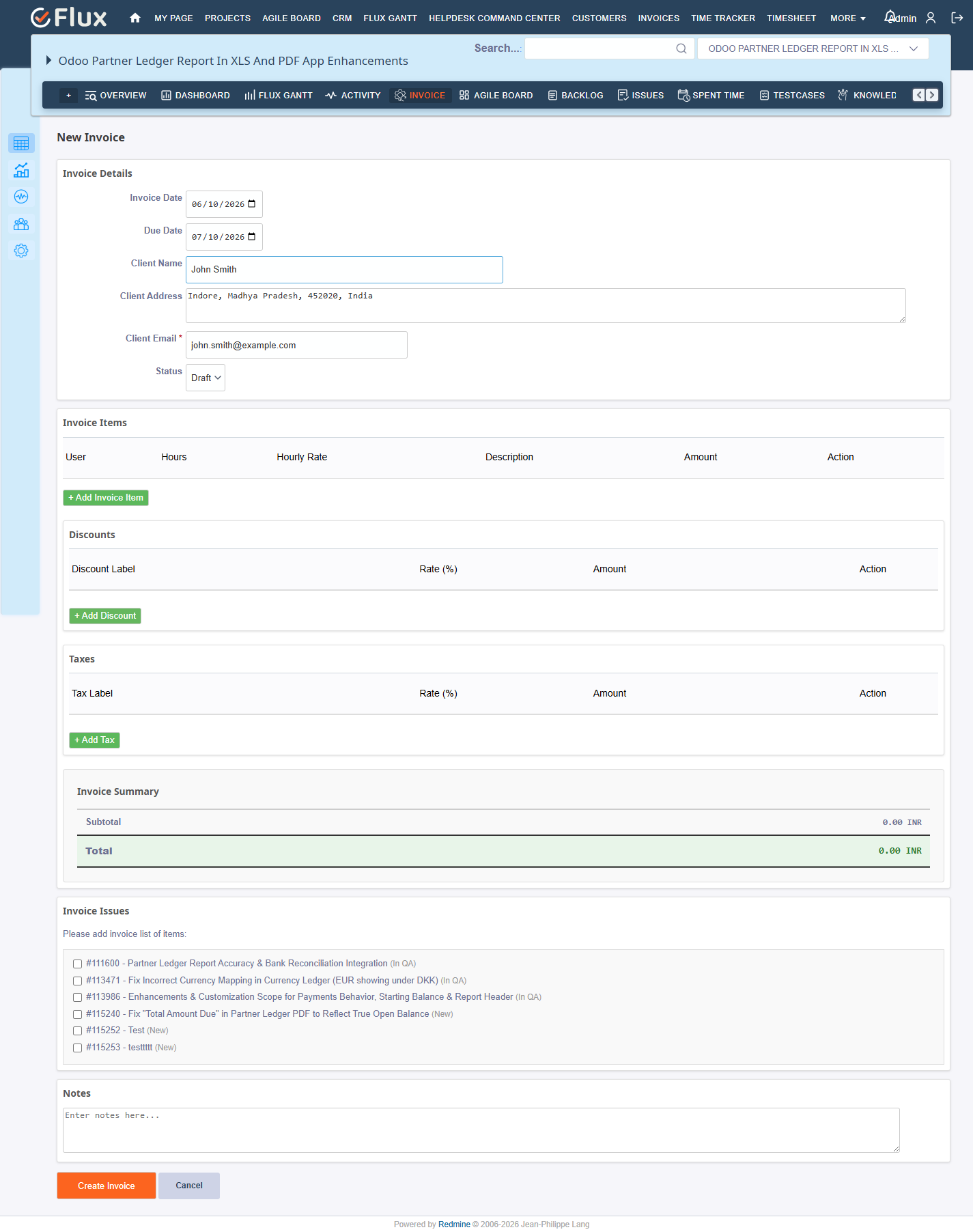
To create manually:
- Open the project.
- Click the Invoice tab.
- Click New Invoice.
- Fill in the invoice details.
- Save.
To auto-generate from time entries:
- Open the project.
- Click the Invoice tab.
- Open the Billing Report.
- Select a date range.
- Review the billable hours grouped by user.
- Click Generate Invoice.
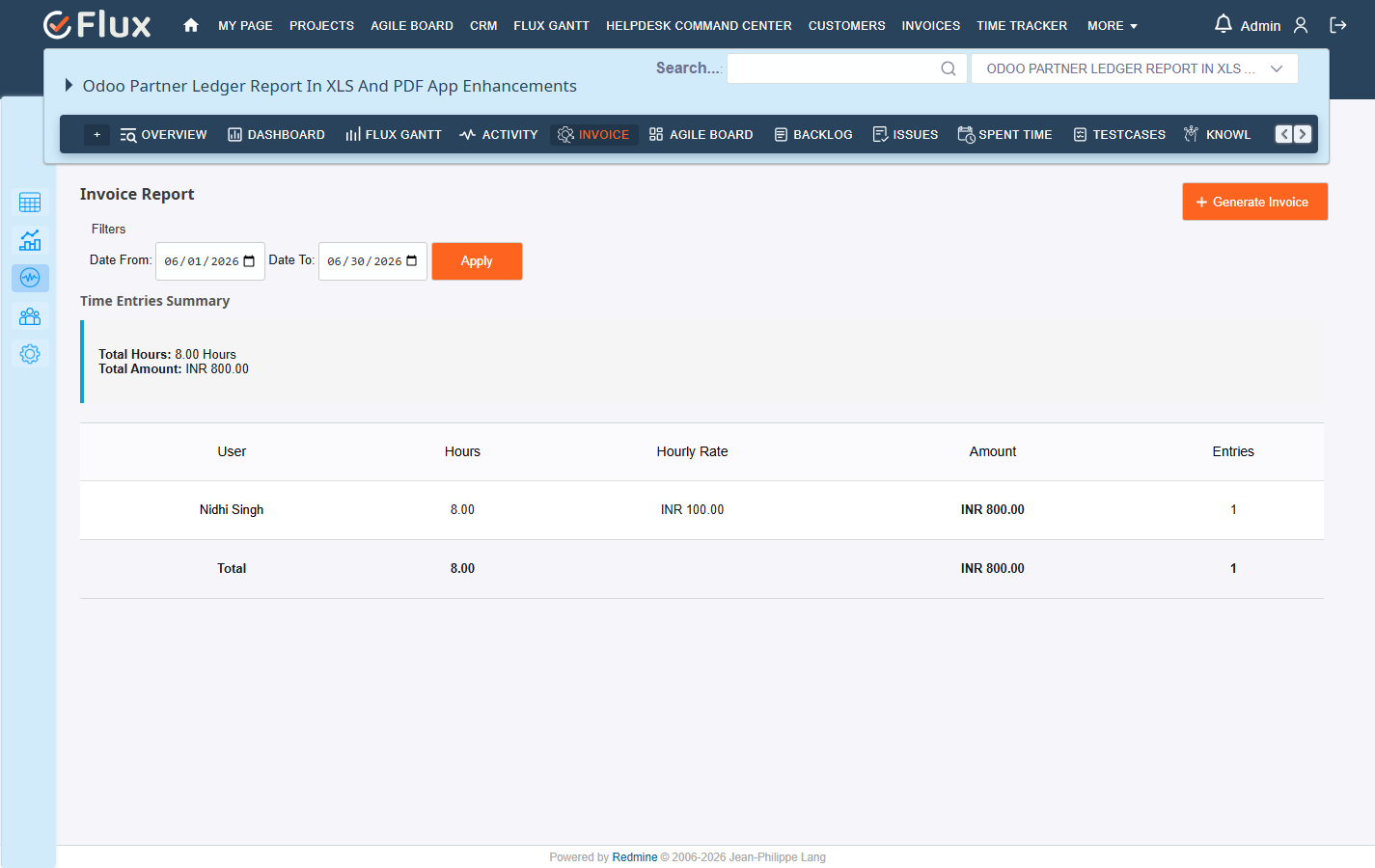
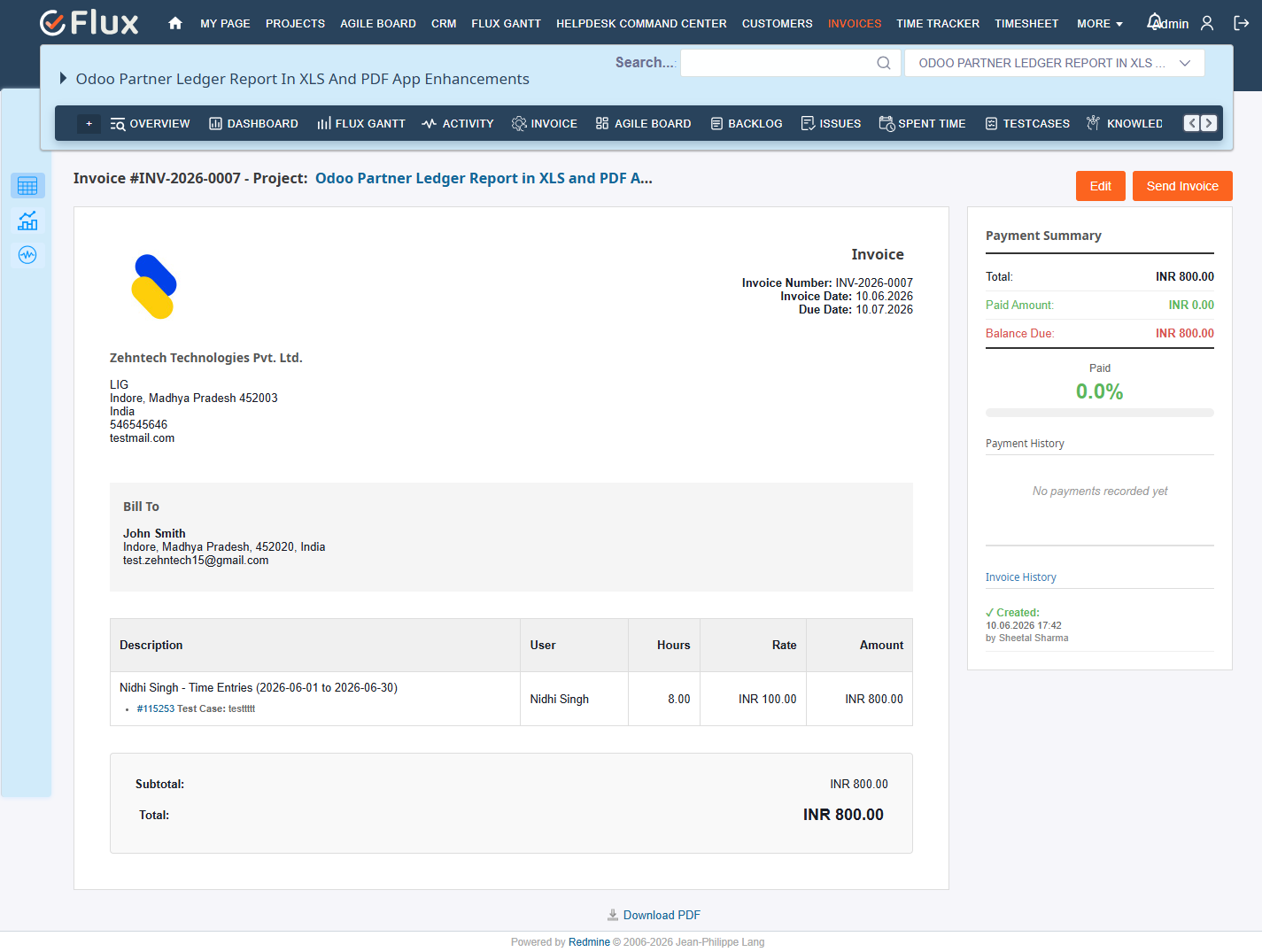
Auto-generated invoices aggregate all time entries within the selected date range, look up each user’s hourly rate, and create one line item per user.
How to Edit an Invoice #
Invoices can only be edited while in Draft status.
- Open the invoice.
- Click Edit.
- Update line items, rates, adjustments, or other details.
- Save.
Once an invoice is sent it can no longer be edited.
How to Add Tax or Discount to an Invoice #
- Open the invoice in Draft status.
- Click Edit.
- In the Adjustments section, add a new row.
- Enter a label (e.g. VAT, Discount), percentage, and whether it is a tax or discount.
- Save.
Taxes are applied after discounts are calculated.
How to Send an Invoice #
- Open the invoice.
- Click Send Email.
After sending:
- The email is sent to the linked customer using the configured email template
- Invoice status changes to Sent
- The invoice can no longer be edited
How to Record a Payment #
- Open the invoice.
- Scroll to the Payments section.
- Enter the payment amount, date, and method.
- Save.
Payment status is updated manually. If the total payments equal the invoice amount, the status changes to Paid automatically. Stripe webhook integrations can record payments automatically when configured.
How to Use Online Payments (Stripe) #
When a payment gateway is enabled, a payment link is available on the invoice.
Customers can use the payment link to pay directly:
- The customer opens the invoice payment link.
- They select Stripe checkout.
- They complete payment through the gateway.
- The webhook automatically records the payment and updates invoice status.
To configure gateways, see the Payment Gateway section under Configuration.
How to Use the Global Invoice View #
The Global Invoice view shows invoices across all projects you have access to.
You can use it to:
- View all invoices in one place regardless of project
- Filter by status, customer, date range, or project
- Create new invoices from the global view
- Send invoices and track payment status across projects
This is especially useful for billing managers and administrators tracking invoices across multiple client projects.
To access:
- Click Invoices from the top navigation menu.
This shows invoices for all projects where the current user has view_invoices permission.
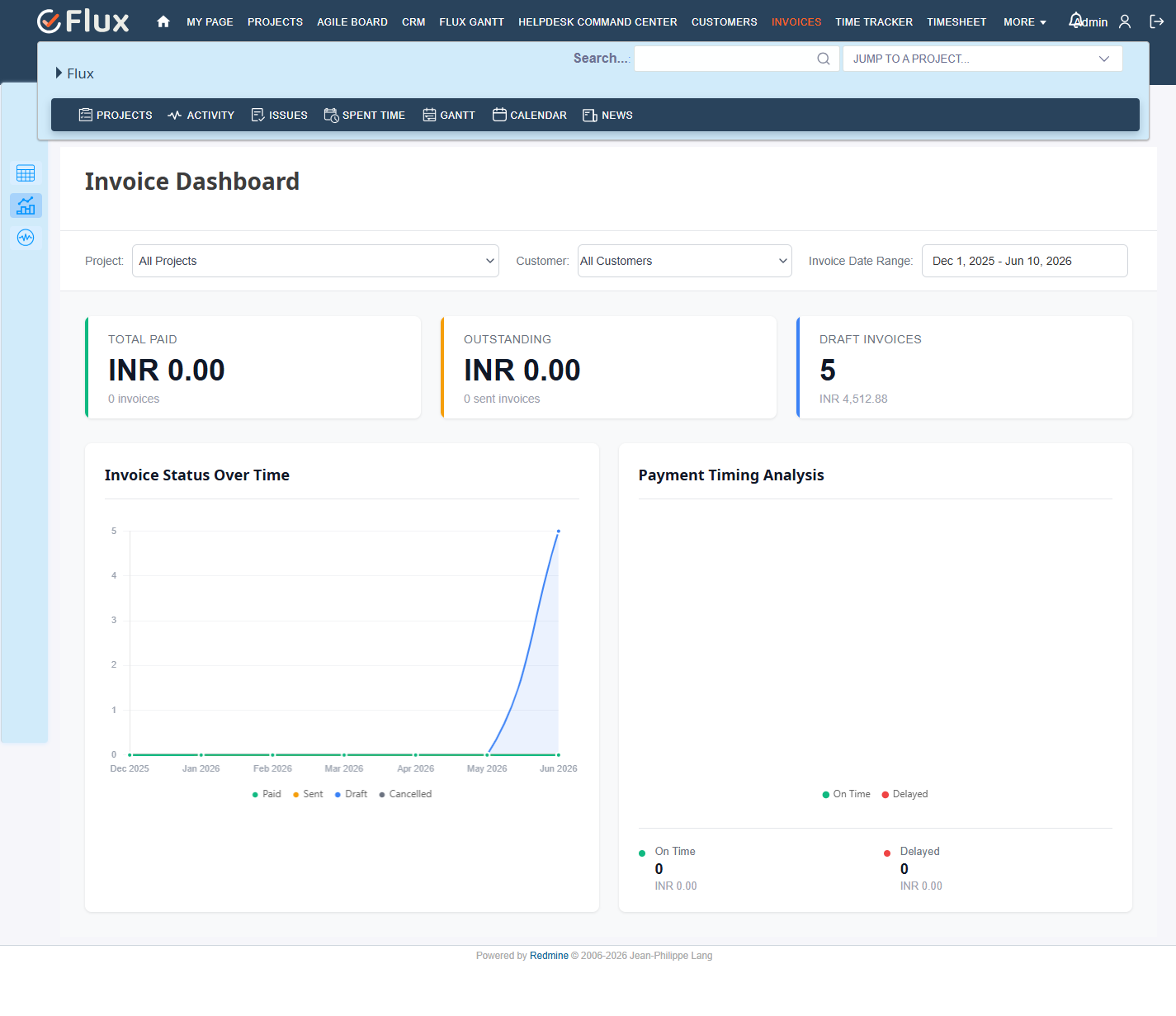
How to Use the Invoice Dashboard #
The dashboard displays summary KPIs for billing visibility.
To view the dashboard:
- Open the project Invoice tab.
- Click Dashboard.
Or access the global dashboard:
- Click Invoices in the top navigation menu.
- Click Dashboard.
The dashboard shows:
- Total value of paid invoices
- Total value of invoices awaiting payment (Sent)
- Total value of unpaid and draft invoices
How to Use the Billing Report #
The Billing Report lets you preview billable hours before generating an invoice.
- Open the project Invoice tab.
- Click Billing Report.
- Select a date range.
- Review hours and calculated amounts per user.
- Click Generate Invoice to create an invoice from the report data.
How to Manage PDF Templates #
The plugin includes a default PDF template. You can create custom templates to match your brand.
To create a new PDF template:
- Go to Administration.
- Open Plugins.
- Find Redmineflux Invoice.
- Click Configure.
- Open the PDF Templates section.
- Click New Template.
- Enter a name and write the HTML/ERB template content.
- Use supported macros in the template.
- Preview and save.
To copy an existing template:
- Open the PDF Templates list.
- Click Copy next to the template you want to duplicate.
- Edit the copy and save.
How to Manage Email Templates #
To create a new email template:
- Go to plugin configuration.
- Open the Email Templates section.
- Click New Template.
- Enter a name, subject, body, and footer.
- Use dynamic placeholders for client name, invoice number, and due date.
- Optionally enable the option to attach the PDF to the email.
- Save.
To preview how the template will look:
- Open the template.
- Click Preview.
Invoice Status Reference #
| Status | Description | Editable? |
|---|---|---|
| Draft | Newly created, under review | Yes |
| Sent | Emailed to the client | No |
| Paid | Payment fully recorded | No |
| Cancelled | Voided invoice | No |
Permissions #
Configure roles at Administration > Roles and Permissions.
| Permission | Scope | What it covers |
|---|---|---|
| view_invoices | Project | View invoices, billing report, team rates |
| manage_invoices | Project | Full invoice CRUD, generate, send, manage team rates |
| manage_customers | Global | Customer full CRUD |
Troubleshooting #
If you face issues with the plugin, try the following:
- Clear browser cache and reload the page.
- Restart the Redmine application.
- Make sure the plugin is installed in
plugins/redmineflux_invoice. - Re-run plugin migrations:
bundle exec rails redmine:plugins:migrate RAILS_ENV=production - Confirm the Invoice module is enabled in project settings.
- Verify billing activity configuration matches logged time entry activities.
- Check user permissions for:
- view_invoices
- manage_invoices
- manage_customers
- Review Redmine logs for plugin load or controller errors.
- For PDF generation issues, confirm that at least one supported binary is installed: wkhtmltopdf, PDFKit, Grover (Chromium), or Prawn.
Frequently Asked Questions #
Q1. How are invoices generated?
Invoices are generated from time log entries within a selected date range. Each user’s hours are aggregated and multiplied by their hourly rate to produce one line item per user.
Q2. Can I edit a sent invoice?
No. Only invoices in Draft status are editable. Once sent, the invoice is locked.
Q3. Is payment automatic?
No. Payments must be recorded manually unless Stripe webhooks are configured. When webhooks are active, the gateway records payments and updates invoice status automatically.
Q4. Can I set different rates for different users?
Yes. Use Team Rates under Project > Invoice > Team Rates to set per-user hourly rates. If no user rate is set, the project billing rate is used as a fallback.
Q5. Can I customise invoice and email templates?
Yes. Both PDF invoice templates and email templates are fully customisable with HTML/ERB content and macro substitution.
Q6. Can I have multiple customers per project?
No. Each project is linked to one customer for billing. If you need to bill multiple clients, create separate projects or create invoices manually.
Q7. Does deleting a customer delete its invoices?
No. The plugin prevents deletion of customers linked to projects. Unlink the customer from all projects first.
Q8. Does the plugin support Redmine 6?
Yes. The current plugin supports Redmine 5.0.x, 5.1.x, and 6.0.x from a single repository.
Q9. Can I use online payment collection?
Yes. Stripe are supported. Configure the gateway credentials in plugin settings and share the payment link included in each invoice.
Uninstallation #
To uninstall the plugin:
- Go to the Redmine installation directory.
- Roll back the database migrations.
bundle exec rake redmine:plugins:migrate NAME=redmineflux_invoice VERSION=0 RAILS_ENV=production - Remove the plugin folder.
rm -rf plugins/redmineflux_invoice - Restart Redmine.
touch tmp/restart.txt
Take a database backup before rollback or uninstallation.
Conclusion #
Redmineflux Invoice is a complete invoicing and billing plugin for Redmine that connects time tracking with client billing in one integrated workflow. It supports the full invoice lifecycle from draft through payment, flexible team rate configuration, customisable PDF and email templates, and optional online payment collection via Stripe. The plugin works across Redmine 5.0.x, 5.1.x, and 6.0.x from a single codebase.


